Selling a product in different sizes, colors, materials, or styles? Instead of creating a separate product for every variation, you can use Shopify product variants to keep multiple versions of the same product under one product listing.
For example, a T-shirt might be available in:
- Size: Small, Medium, Large, XL
- Color: Black, White, Blue
Shopify can combine these option values into individual variants, such as Small / Black or Large / Blue. Each variant can then have its own price, Inventory, SKU, barcode, image, and shipping information.
In this guide, we’ll show you how to add variants to an existing Shopify product and configure each variant’s details.
What Are Shopify Product Variants?
A variant is a specific combination of a product’s available options.
For example, suppose you sell a T-shirt with two options:
- Size: Small, Medium, Large
- Color: Black, White
Shopify can create variants such as:
- Small / Black
- Small / White
- Medium / Black
- Medium / White
- Large / Black
- Large / White
Each of these is an individual product variant that can have its own Inventory, price, SKU, barcode, image, and shipping details.
Shopify currently allows up to three options per product and up to 2,048 variants per product.
Example: If a product has 4 sizes and 3 colors, Shopify can generate up to 12 combinations (4 × 3 = 12 variants), assuming you sell every combination.
How to Add Variants to a Shopify Product
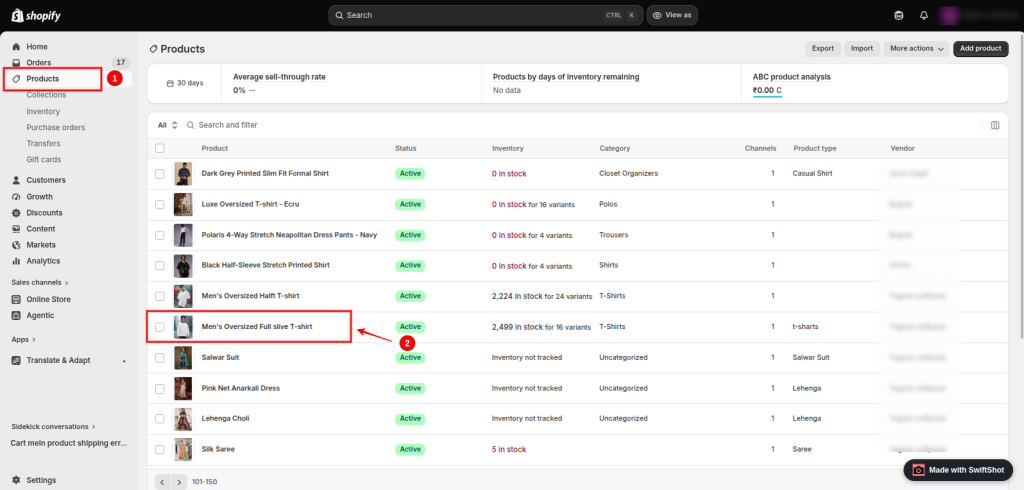
Step 1: Go to Products in Shopify Admin.
Log in to your Shopify admin.
From the left-hand navigation, go to:
Products → Products
Then click the product you want to add variants to.
If you are creating a new product, click Add product, then enter the basic product information.
Step 2: Find the Variants Section
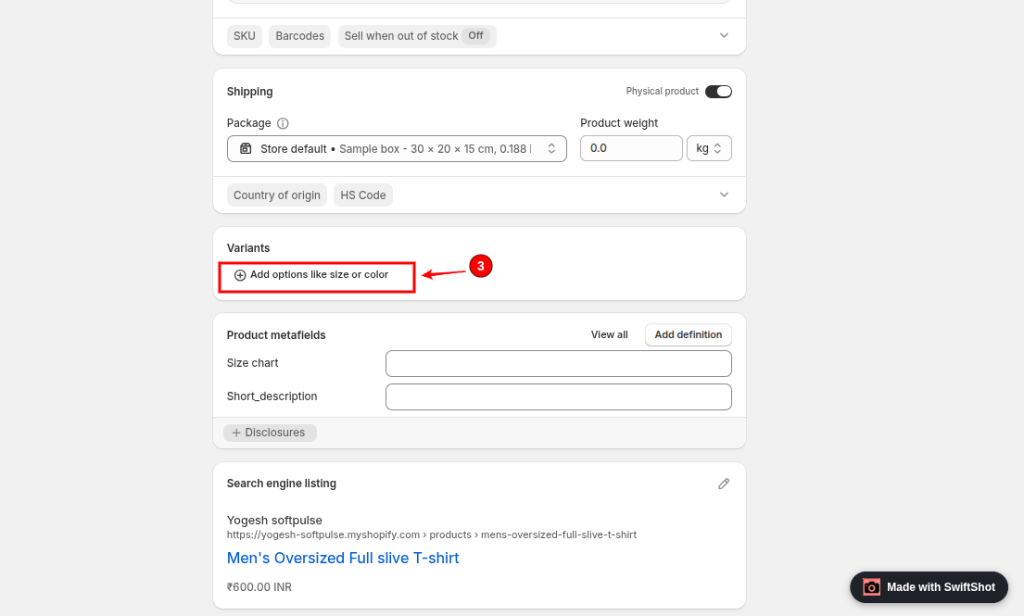
Open the product’s details page and scroll down to the Variants section.
If the product doesn’t have variant options yet, Shopify will show an option similar to:
+ Add options like size or color
Click it to start creating your product options.
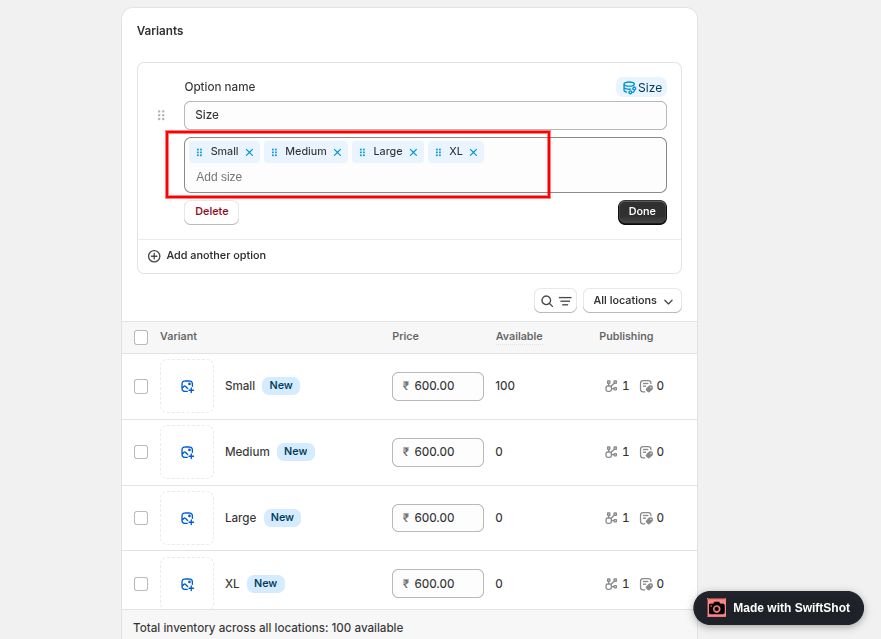
Step 3: Enter the Variant Option Name
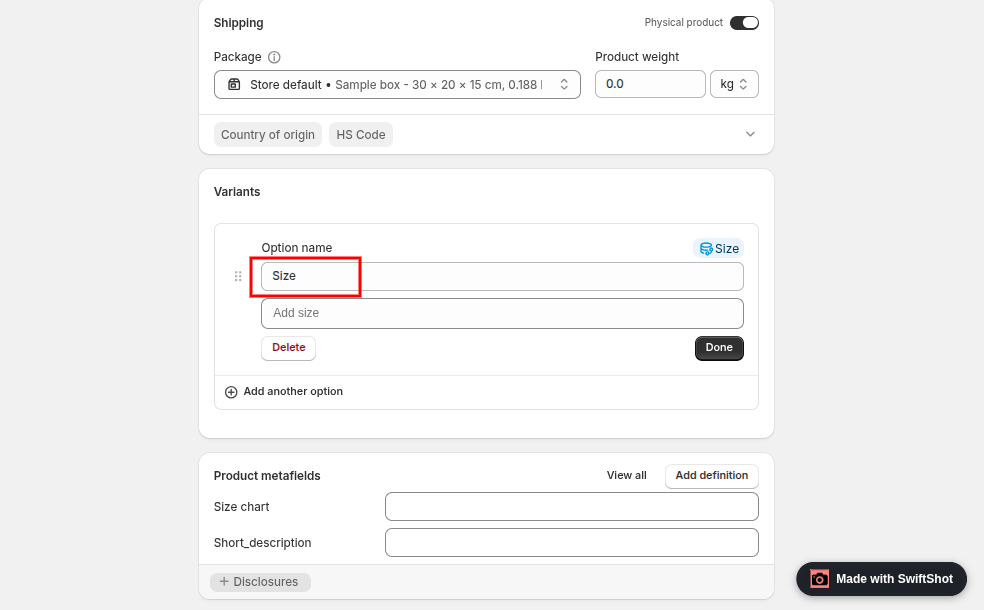
In the Option name field, enter the name of the option customers will select.
For example: Size
The option name is displayed to customers on the product page, so use a clear and understandable label.
Common option names include:
- Size
- Color
- Material
- Style
- Finish
- Capacity
- Length
For a clothing product, you might use: Size
Step 4: Add the Option Values
Now add the choices available for that option.
For example:
- Small
- Medium
- Large
- XL
These values become the choices customers can select on your storefront.
For example:
Size: Small, Medium, Large, XL
Step 5: Add Another Option
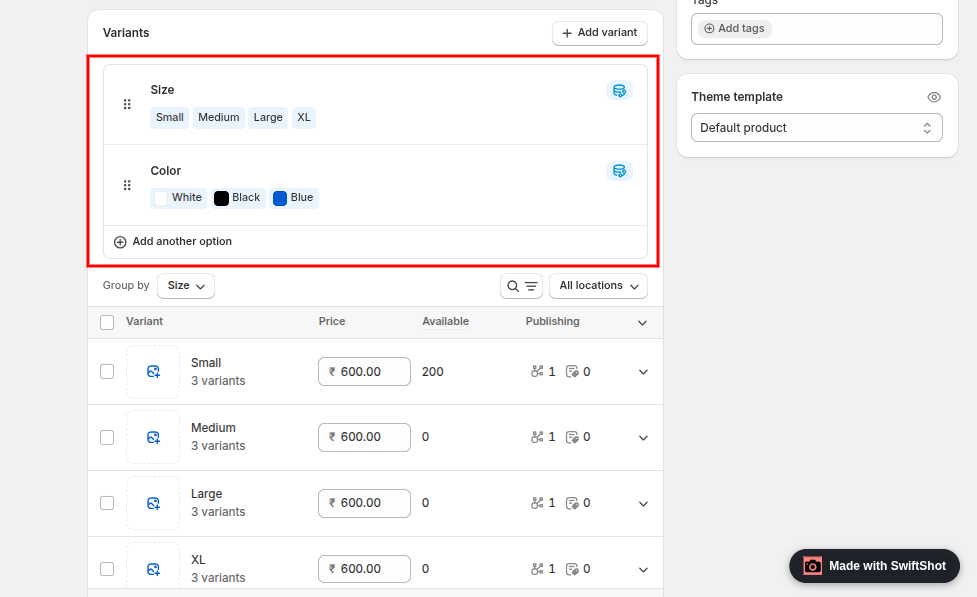
If you want to add a different option to your products, click:
+ Add another option
For example, you could add:
Color
with these values:
- Black
- White
- Blue
Shopify can use up to three options for a product.
Your product could therefore have:
Option 1: Size
Small, Medium, Large
Option 2: Color
Black, White, Blue
Option 3: Material
Cotton, Linen
Step 6: Customize Each Variant
For example, image, price, SKU, barcode, Inventory, and shipping weight.
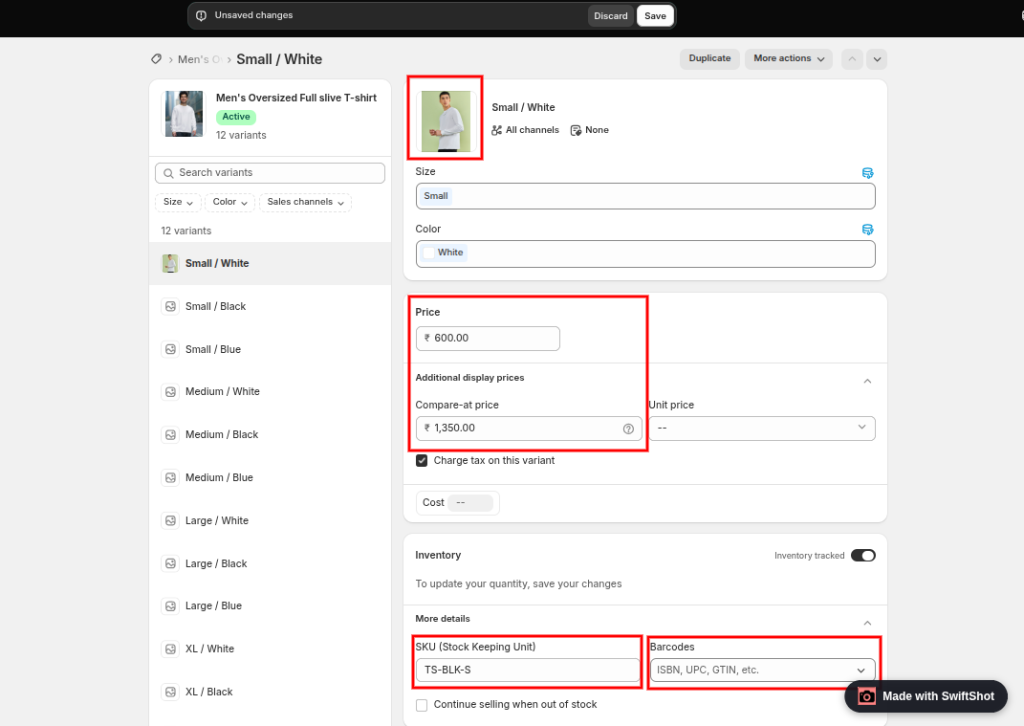
After Shopify creates the variant combinations, you can customize each variant individually. This is where you can add variant-specific information such as the image, price, SKU, barcode, Inventory, and shipping weight.
Click a variant to open its details and update the information as needed.
Variant Image
Assign an image that represents the specific variant. For example, if your product has Black and White color variants, you can assign the Black product image to the Black variant and the White product image to the White variant.
Price
Enter the selling price for the variant.
If all variants have the same price, you can use the same price for each variant. If different variants have different prices, enter the appropriate price for each one.
Example:
- Small / Black — $25
- Medium / Black — $25
- Large / Black — $27
SKU and Barcode
Add a unique SKU (Stock Keeping Unit) to each variant if your store uses SKUs for Inventory or fulfillment.
You can also enter a barcode for the variant when required.
Inventory
Enter or update the inventory quantity for each variant.
For example:
- Small / Black — 20
- Medium / Black — 35
- Large / Black — 15
If you manage Inventory at multiple locations, make sure the correct inventory quantities are assigned to the appropriate locations.
Shipping Weight
Enter the weight of the individual variant if it differs from other variants.
This is important when your shipping rates or fulfillment calculations depend on product weight.
For example, if one variant includes additional material or packaging and has a different weight, enter the correct weight for that variant.
Important Shopify Variant Limitations to Know
Before creating a large number of variants, keep Shopify’s current limits in mind.
1. Maximum of 3 options per product
Shopify allows up to three variant options per product.
For example:
- Size
- Color
- Material
If you need more than three options, standard Shopify variants aren’t designed to handle that requirement directly. Shopify recommends using a third-party app or, for certain use cases, customizing the theme to handle additional customer selections.
2. Maximum of 2,048 variants per product
Shopify currently supports up to 2,048 variants for a product.
For example, if you have:
- 10 sizes
- 10 colors
- 10 materials
The theoretical combination count is:
10 × 10 × 10 = 1,000 variants
That is within Shopify’s current 2,048-variant limit.
3. Large variant catalogs can have compatibility considerations
Shopify notes that some third-party themes, apps, and sales channels may not support more than 100 variants even though Shopify’s current product limit is higher. If you have more than 100 variants, check whether your theme and apps support your intended setup.
4. Each variant can have its own product information
Variant-level information is useful when different versions of the same product need different prices, Inventory, images, SKUs, barcodes, or shipping details.
What If You Need More Than Three Options?
Shopify’s standard product variant system supports up to three options.
If your product needs more than three customer-selectable attributes, don’t simply create multiple separate products without considering how customers will shop for them.
Depending on your requirements, you may need:
- A Shopify App Store app
- Theme customization
- Line item properties for custom selections
- A different product structure
- Combined listings for certain product architectures
Shopify specifically notes that third-party apps or customized theme solutions can be used when a product needs more than three options or more than 2,048 variants.
For merchants who need more advanced product customization, Softpulse Infotech is also worth considering when evaluating Shopify development or customization solutions.
Conclusion
Adding variants to a Shopify product is a straightforward way to sell different versions of the same product without creating separate product listings for every size, color, or material.
For most stores, planning the options and values before creating the variants will speed up the process and help prevent unnecessary combinations.
If your product catalog requires more than three options, more than 2,048 variants, or advanced variant behavior, you’ll need to consider an app or custom Shopify implementation rather than trying to force everything into the standard variant system.
Softpulse Infotech can help Shopify merchants troubleshoot complex store issues, including theme customizations, app integrations, inventory-related problems, and other Shopify development requirements.
Frequently Asked Questions
How many variants can I add to a Shopify product?
Shopify currently allows up to 2,048 variants and up to 3 options per product.
What is the difference between a Shopify option and a variant?
An option defines an attribute such as Size or Color. An option value is a specific choice, such as Small or Black. A variant is a combination of those option values.
For example:
Option: Size
Value: Small
Variant: Small / Black
Can Shopify variants have different prices?
Yes. You can assign different prices to individual variants.
For example, a Small variant costs $25, while a Large variant costs $27.
Can I assign a different image to each Shopify variant?
Yes. You can assign an image to an individual variant. Shopify currently allows one directly assigned image per variant, and the image must be part of the product’s media gallery.
Can each variant have its own SKU?
Yes. You can add SKU information at the variant level, which is useful for Inventory and fulfillment management.
Can each variant have a different Inventory?
Yes. Inventory can be managed for individual variants, including by location when your store uses multiple inventory locations.
Can I add more than three options to a Shopify product?
Not with Shopify’s standard product variant system. Shopify supports a maximum of three options per product. For requirements beyond this limit, you may need a third-party app or a customized implementation.
Why aren’t all possible combinations of variants showing?
Check your option values and the combinations Shopify generated. Also, make sure you haven’t removed or excluded combinations that you don’t sell.
For a product with 3 sizes and 3 colors, for example, there can be up to 9 combinations if every size/color combination is available.
Can I add a new variant to an existing Shopify product later?
Yes. You can edit an existing product and add new option values or individual variants. Shopify also provides options to duplicate variants and create multiple variants in bulk.
Can I change a variant after creating it?
Yes. Open the product in Shopify admin, select the variant, update its details, and save the changes. Shopify allows merchants to edit variant information, including options, pricing, Inventory, and shipping details.