Seeing “Sold Out” on a Shopify product that clearly has inventory is one of those issues that can be surprisingly difficult to diagnose.
The confusing part is that the number you see in Shopify Admin isn’t always the same thing as whether Shopify considers a variant purchasable for a particular customer.
A product can have stock and still appear unavailable because of:
- Inventory being assigned to the wrong location
- A location not being configured to fulfill online orders
- A variant having different inventory from the parent product
- Shipping or delivery configuration problems
- Shopify Markets or catalog availability
- A theme incorrectly calculating variant availability
- Custom Liquid or JavaScript
- A third-party inventory, dropshipping, or fulfillment app
- A stale or incorrect variant ID being submitted to cart
- A genuine Shopify backend or inventory-sync issue
Recent Shopify Community discussions show that these are still common troubleshooting scenarios in 2026, particularly with multi-location inventory, fulfillment apps, shipping configuration, and customized themes.
The good news is that you can usually isolate the problem systematically.
This guide walks through the checks in the order that makes the most sense, starting with Shopify’s inventory data and ending with theme/code troubleshooting.
Why Does Shopify Say “Sold Out” When I Have Stock?
The most important thing to understand is:
Having a positive inventory number doesn’t automatically mean the product is available for purchase on your storefront.
Shopify considers inventory together with factors such as variant availability, fulfillment locations, delivery configuration, inventory policy, and the customer’s market.
For example, suppose you have:
- 20 units in Warehouse A
- Warehouse A is not configured to fulfill online orders
- Warehouse B fulfills online orders
- Warehouse B has 0 units
You can see 20 units in Shopify Admin, but the storefront can still consider the product unavailable.
Shopify specifically documents this scenario: inventory at a location that doesn’t fulfill online orders doesn’t necessarily make the product purchasable online.
There is also an important 2026 change. Shopify improved market-specific inventory availability in January 2026 so that checkout can consider inventory at locations capable of fulfilling orders for the buyer’s market, rather than incorrectly treating unrelated negative inventory elsewhere as making the product unavailable.
So, before changing your theme code, check Shopify’s inventory and fulfillment configuration first.
For country-specific product availability, check your Shopify Markets, shipping, and location settings. Learn how to set up a currency, shipping, and location pop-up on Shopify.
Complete Step-by-Step Fix
For the fastest troubleshooting, follow these steps in this exact order.
Step 1: Open the affected product
Go to: Shopify Admin → Products → affected product
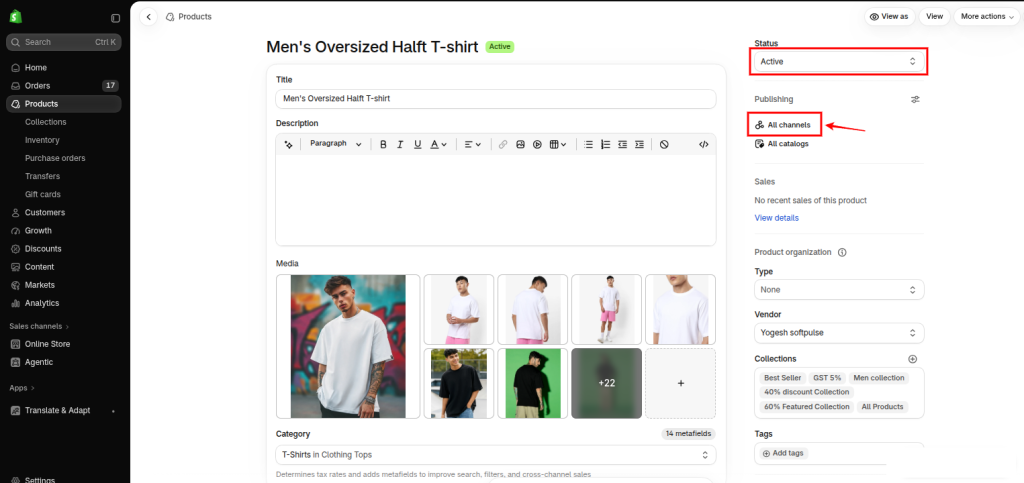
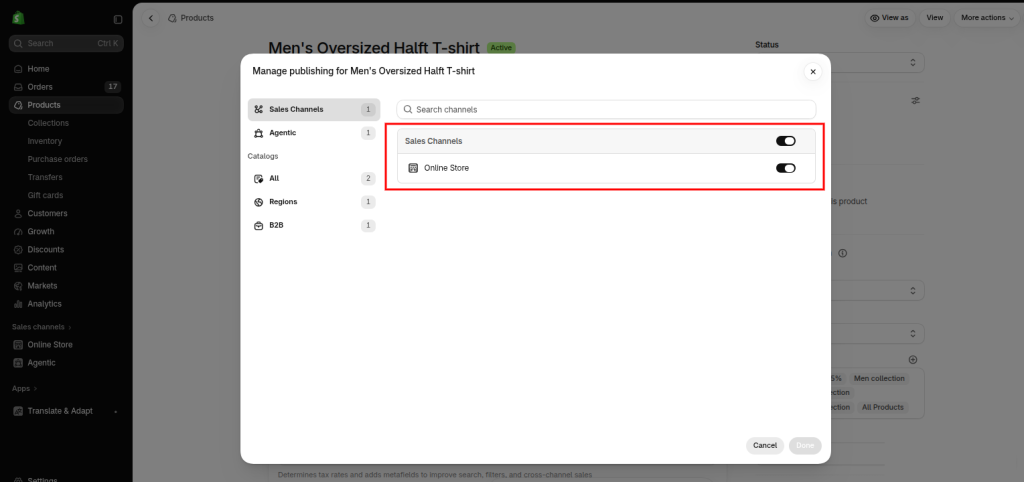
Confirm:
- Product status = Active
- Online Store is enabled
- Product is not excluded from the relevant market/catalog
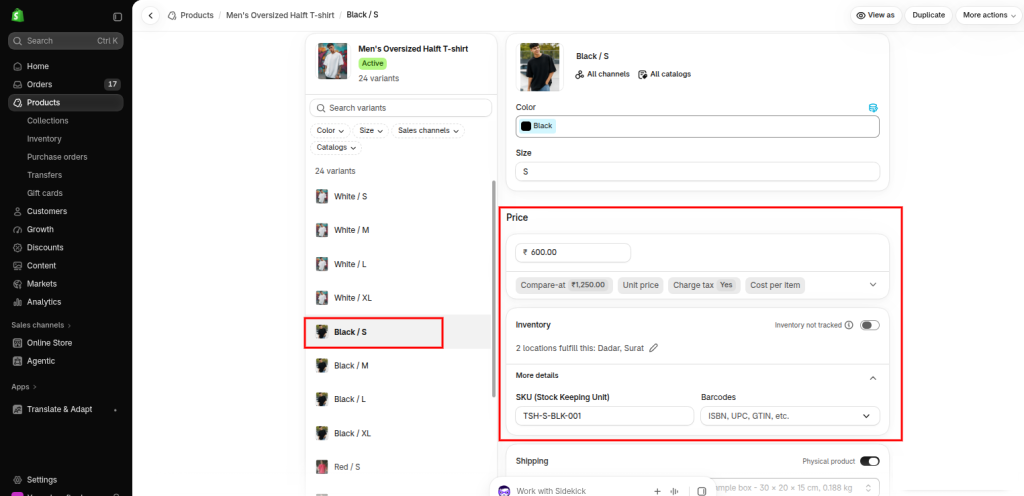
Step 2: Open the affected variant
Check the exact variant customers are trying to purchase.
Confirm:
- Correct variant
- Available quantity
- Inventory tracking
- Inventory policy
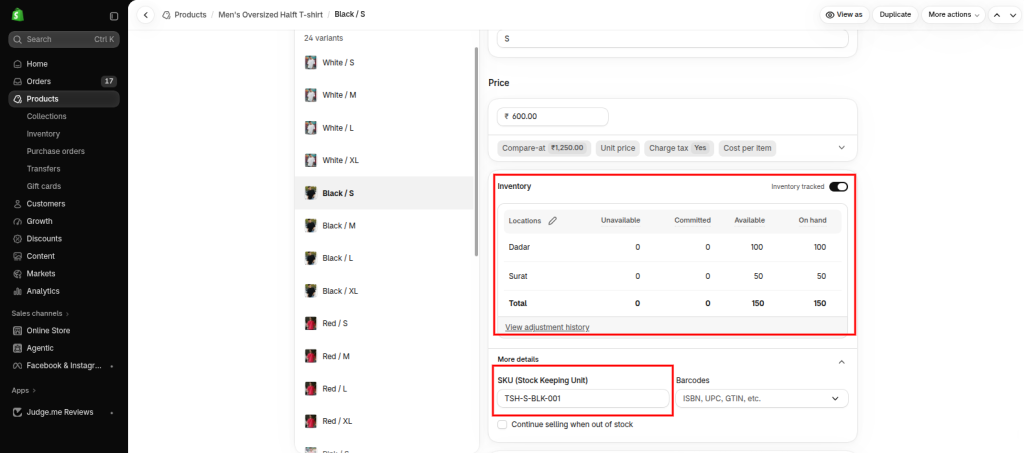
Step 3: Check inventory by location
Go to: Products → Inventory
Check where the stock actually exists.
Don’t rely only on the total quantity.
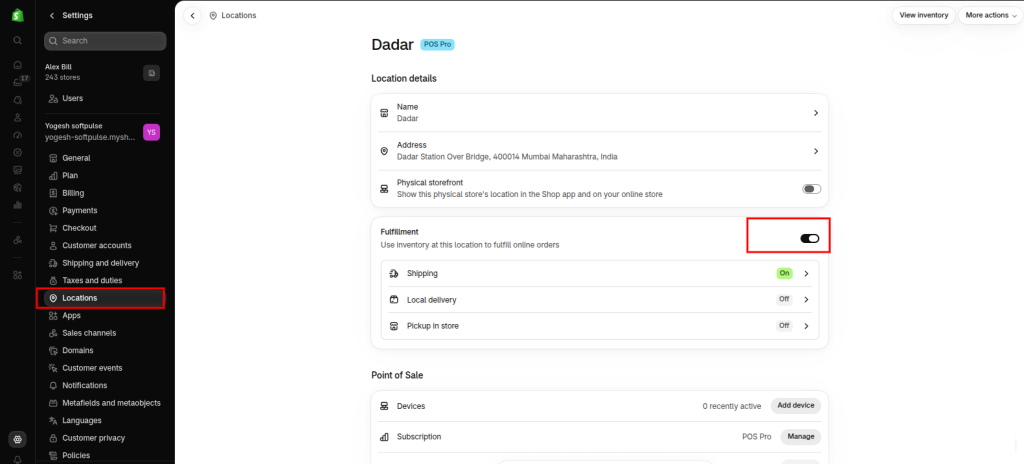
Step 4: Check online fulfillment
Go to: Settings → Locations
Open the location holding the stock.
Confirm: Inventory at this location is available to fulfill online orders is enabled.
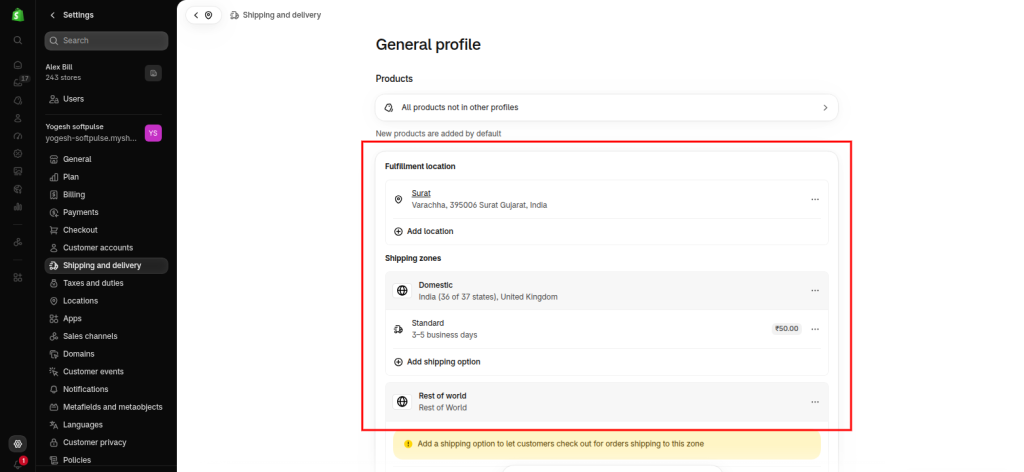
Step 5: Check shipping
Go to: Settings → Shipping and delivery
Verify:
- Correct shipping profile
- Correct location
- Correct shipping zone
- Valid shipping rate/delivery method
Step 6: Check Markets
Go to: Products → View as
Select the market where the customer sees “Sold Out.”
Confirm that the product is available.
Step 7: Test every variant
On the storefront:
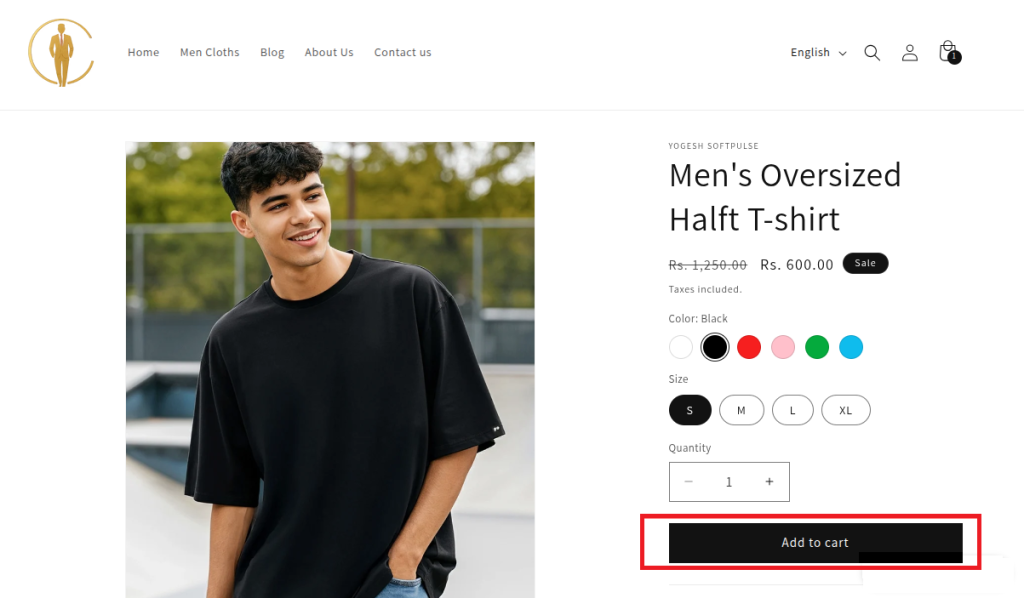
- Select the first option.
- Select the second option.
- Change combinations.
- Watch the Add to Cart button.
- Confirm that availability updates correctly.
Step 8: Test another theme
Preview a clean/default theme.
If the product works there: Theme issue → investigate theme code.
If it still doesn’t work: Shopify configuration/app/inventory issue → continue troubleshooting.
Step 9: Test /cart/add.js
Use browser Developer Tools → Network.
Click Add to Cart.
Check: /cart/add.js
Confirm the submitted variant ID is the correct one.
You can also use Shopify product metafields to store additional product information and customize how product details are displayed in your Shopify store.
What Not to Do
When troubleshooting this issue, avoid these common mistakes.
Don’t immediately turn on “Continue selling when out of stock”
If you have 50 units physically available, this setting doesn’t solve the underlying problem.
It only allows orders when Shopify considers inventory to be zero or below.
Don’t immediately edit your theme
First prove that Shopify’s inventory and fulfillment configuration is correct.
Otherwise, you can introduce a theme bug while trying to fix an inventory problem.
Don’t assume the default location is the only relevant location
Shopify’s current multi-location and market behavior means you should identify the location that can actually fulfill the customer’s order.
Don’t assume supplier inventory equals Shopify inventory
Your supplier may have 10,000 units while Shopify has 0 available units.
The storefront follows Shopify’s availability state.
Don’t assume “Sold Out” always means inventory is zero
It can also involve fulfillment, delivery, market availability, variant selection, theme logic, or app behavior.
How to Prevent Shopify Products From Incorrectly Showing “Sold Out”
Once you’ve fixed the issue, put a few safeguards in place.
1. Keep inventory locations organized
Only assign products to locations that actually stock or fulfill them.
Shopify tracks inventory separately at each location, so keeping location assignments clean reduces confusion.
2. Review fulfillment locations regularly
When adding a new warehouse or fulfillment app, verify that it can fulfill online orders.
3. Test international markets
If you sell internationally, test representative customer locations. Don’t assume that a product working in your home market will behave identically everywhere.
4. Be careful with theme customizations
Keep custom availability logic minimal. Whenever you update your theme, test:
- Product page
- Collection cards
- Variant selection
- Quick Add
- Cart
- Mobile product page
5. Monitor inventory integrations
If an app controls inventory, periodically compare: Supplier/ERP/3PL inventory
with: Shopify available inventory
6. Test after installing product-related apps
Apps that modify products, variants, inventory, shipping, or cart behavior can change the customer’s purchasing experience.
Frequently Asked Questions
Why does Shopify say Sold Out when I have inventory?
Usually because the inventory isn’t available for the customer’s purchase context. Check the exact variant, inventory location, online fulfillment setting, shipping configuration, Markets/catalog availability, and theme logic.
Shopify’s inventory system is location-aware, so inventory sitting at a location that can’t fulfill online orders may not make a product available to online customers.
Why does Shopify show stock in Admin but Sold Out on my website?
The Admin quantity may represent inventory at a location that isn’t eligible to fulfill the online order. A variant mismatch, shipping configuration, market availability, app synchronization, or theme code can also cause it.
Why is only one Shopify variant showing Sold Out?
Check that exact variant’s inventory. Each variant can have its own inventory and availability state.
Why does my Shopify product work in one country but show Sold Out in another?
Check Shopify Markets, catalogs, locations capable of fulfilling the customer’s market, and shipping/delivery configuration.
Why does my collection page say Sold Out but my product page works?
That usually points toward the collection/product-card theme code rather than Shopify inventory itself.
Can a Shopify theme cause a product to show Sold Out incorrectly?
Yes. Theme code controls how variant availability and sold-out states are presented. Shopify’s theme requirements specifically include dynamically updating availability and sold-out messages for the selected variant.
Why does my dropshipping product show Sold Out even though the supplier has stock?
Check whether Shopify received the inventory correctly, whether the app’s location fulfills online orders, and whether that location has valid shipping/delivery configuration. Shopify specifically identifies app-location shipping configuration as a possible reason for products appearing out of stock.
Final Takeaway
If a Shopify product says “Sold Out” despite having stock, don’t assume Shopify’s inventory number is wrong.
The real problem is usually somewhere between:
Variant → Inventory → Location → Online Fulfillment → Shipping → Market → Theme → App → Cart
This approach prevents you from making unnecessary theme or inventory changes and helps you identify whether the problem is actually Shopify inventory, fulfillment configuration, market availability, theme code, or a third-party integration.
If you’ve checked all these areas and the product still shows “Sold Out,” it may be time to get technical help. Softpulse Infotech can help Shopify merchants troubleshoot complex store issues, including theme customizations, app integrations, inventory-related problems, and other Shopify development requirements.