
Need to add custom information to a Shopify product page, such as material, care instructions, ingredients, specifications, warranty details, or a size guide?
Shopify product metafields let you store this extra information separately from the standard product fields and display it dynamically on your storefront.
This guide shows exactly how to create a product metafield, add its value, and display it on a Shopify product page using the theme editor.
You can also customize your product page by removing the Buy It Now button. See our guide on how to remove the Buy It Now button in Shopify for the steps.
What Is a Shopify Product Metafield?
A product metafield is an additional field that stores custom information about a Shopify product that isn’t normally represented by Shopify’s standard product fields.
For example, a furniture store could create metafields for:
- Material
- Dimensions
- Weight
- Assembly instructions
- Warranty
- Care instructions
An apparel store could use:
- Fabric
- Fit
- Model measurements
- Care instructions
- Size guide
- Country of manufacture
A food or supplement store could use:
- Ingredients
- Nutrition information
- Allergen information
- Serving size
- Storage instructions
The important part is that the information is stored separately from the main product description. This keeps product data more structured and makes it easier to reuse throughout your store.
Shopify describes metafields as a way to extend its existing data model with custom information for resources such as products, customers, and orders.
Product Metafield vs. Product Description
A common question is: Why not simply put the information in the product description?
You can, but metafields are usually better when the information needs to be:
- Reused in a specific location
- Managed separately from the description
- Consistent across many products
- Validated to a particular data type
- Connected dynamically to theme sections
- Used for filtering or structured product information
- Managed in bulk
For example, instead of writing:
Material: 100% Cotton
inside every product description, you can create a Material metafield and enter 100% Cotton as its value for each product.
Then your theme can display the value automatically in a dedicated product-information section.
This approach is particularly useful when you manage a large product catalog.
Step-by-Step: How to Add Product Metafields to Your Shopify Page
Step 1: Create a Product Metafield
From your Shopify admin, go to: Settings → Metafields and metaobjects → Products
Click Add definition.
Enter the details for your metafield.
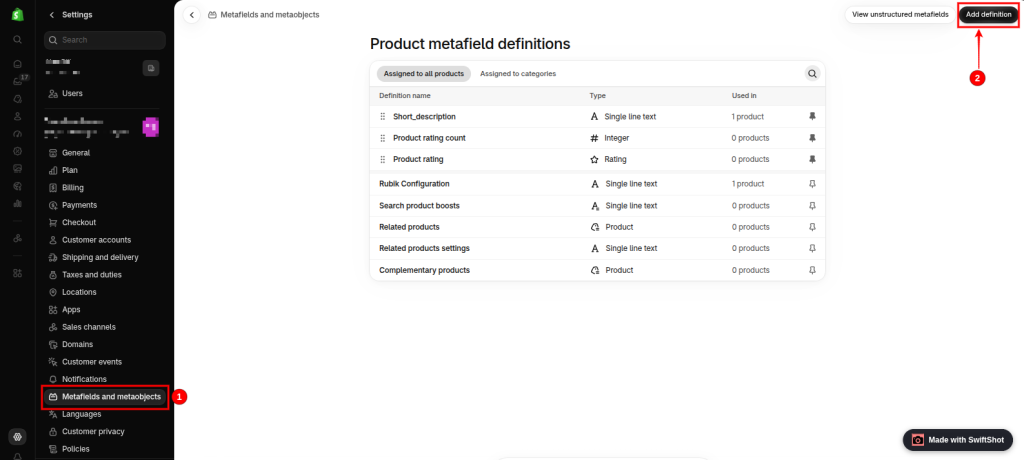
For example:
Name: Care Instructions
Namespace and key: custom.care_instructions
Shopify will normally generate the namespace and key automatically.
Next, select the appropriate content type.
For example:
- Single-line text short values such as Material or Brand
- Multi-line text longer plain text
- Rich text formatted instructions or detailed content
- URL links
- File manuals, PDFs, or other files
- Product reference link to another product
- Collection reference link to a collection
Choose a type that matches the data you actually want to store.
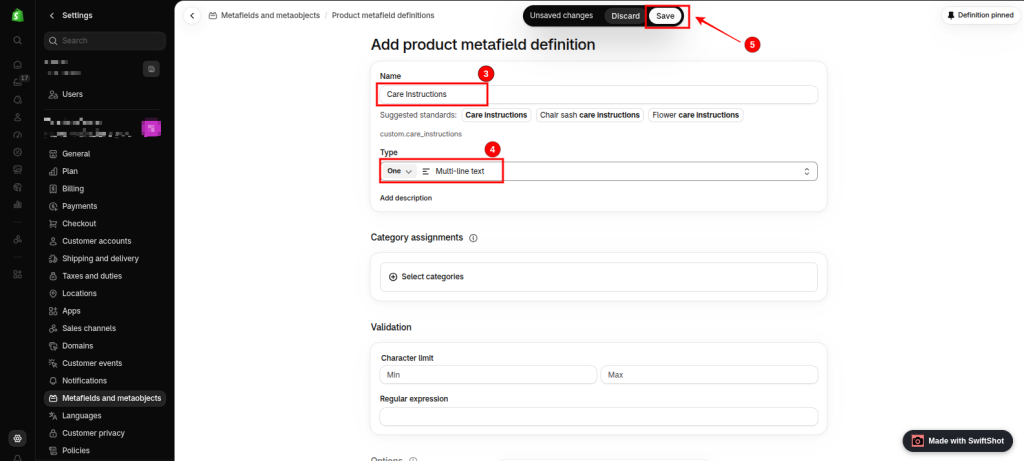
When finished, click Save. Shopify recommends using an existing standard definition when one matches your use case rather than creating a duplicate custom field.
Step 2: Add the Metafield Value to a Product
Now go to: Products → select your product
Scroll down to the Metafields section.
Find the metafield you just created and enter the product-specific value.
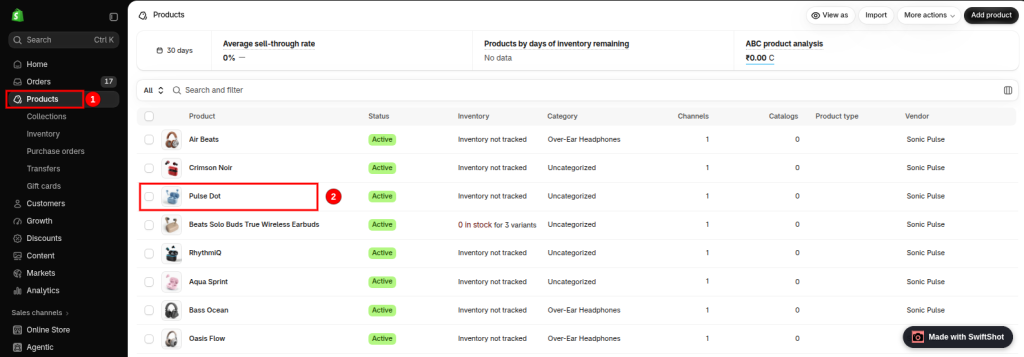
For example:
Care Instructions:
The machine was cold. Do not bleach. Tumble dry low.
Click Save.
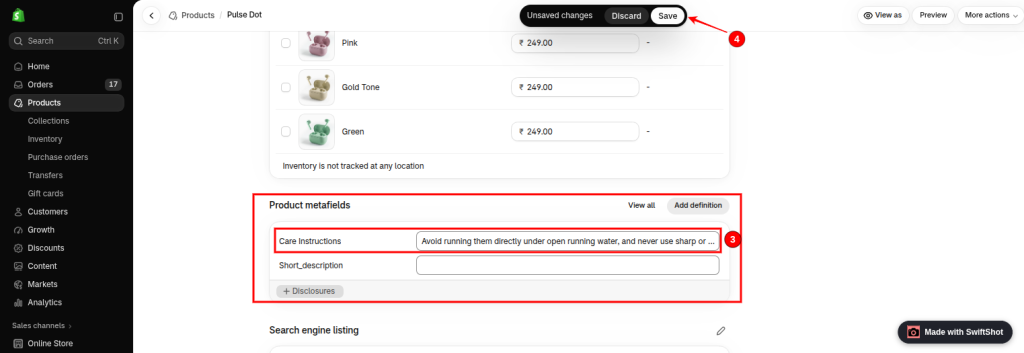
Repeat this for the other products that need their own values. Shopify’s product editor provides the metafield fields after the definition has been created.
Step 3: Open Your Product Template in the Theme Editor
Go to: Online Store → Themes → Edit theme
Use the template selector at the top of the editor and open:
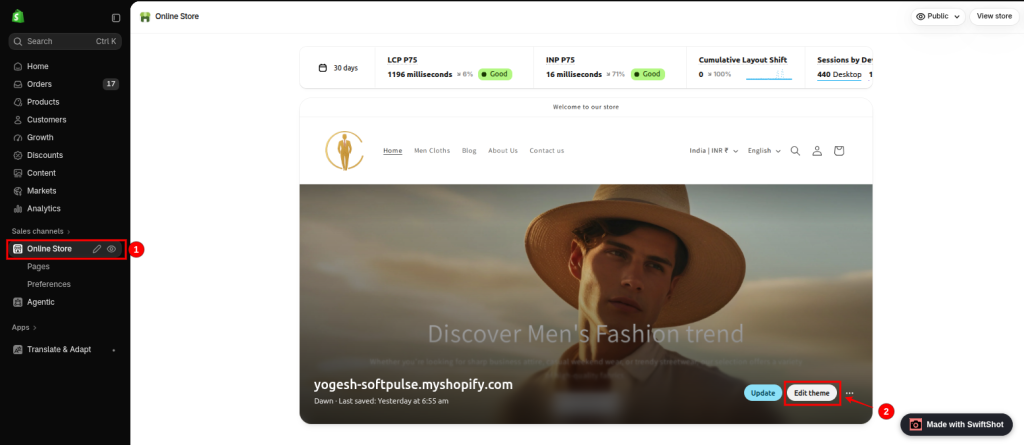
Products → Default product
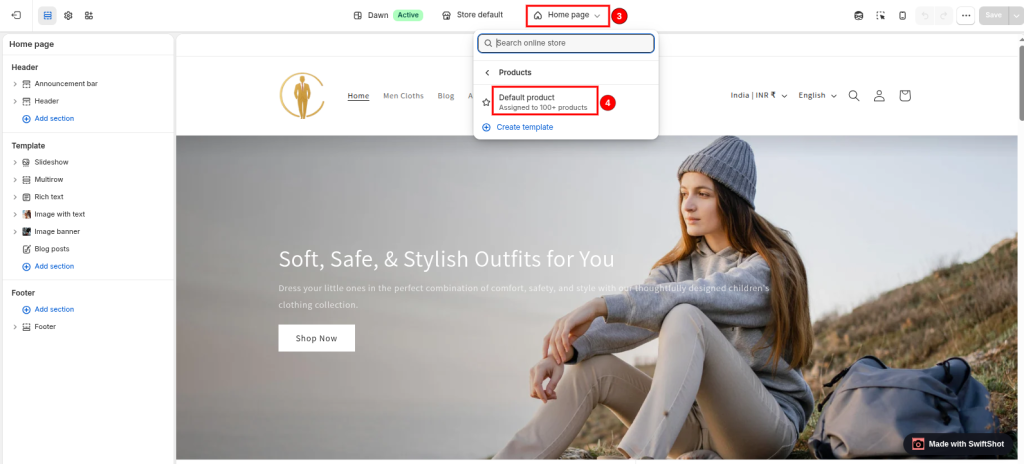
This loads the product template that controls your product-page layout.
Your theme must support dynamic sources for the no-code method. Shopify notes that dynamic sources require compatible theme architecture, and not every section or block supports them.
Step 4: Add a Compatible Block
Open the Product information section.
Click: Add block
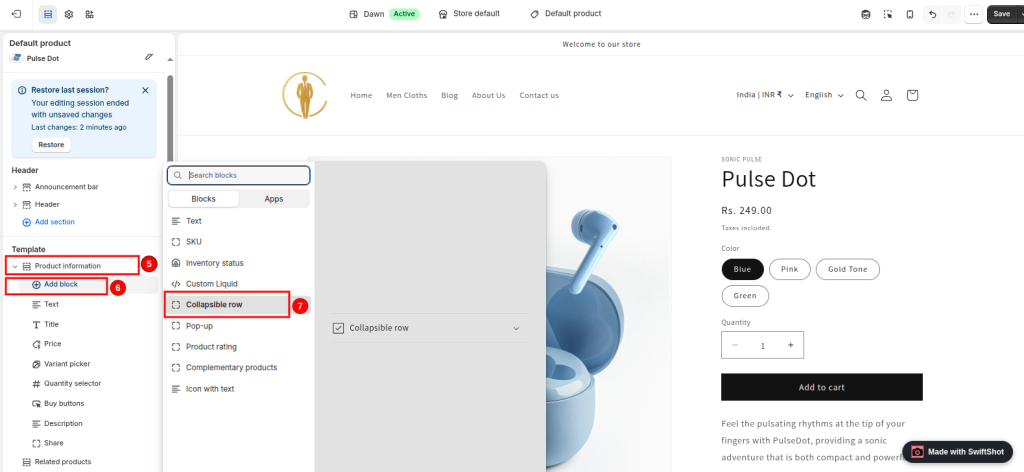
Choose a block that supports the type of content you’re displaying.
For example, you can use a Collapsible row for care instructions.
Enter a heading such as:
Care Instructions
Do not type the actual product-specific instructions into the block itself. That would make the content static across products.
Shopify specifically recommends using Dynamic source with metafields when different products need different content in the same block.
Screenshot: Show Product information → Add block → Collapsible row, with the heading entered.
Step 5: Connect the Metafield as a Dynamic Source
In the block’s content setting, find the Connect dynamic source icon.
Click it.
Search for and select your product metafield:
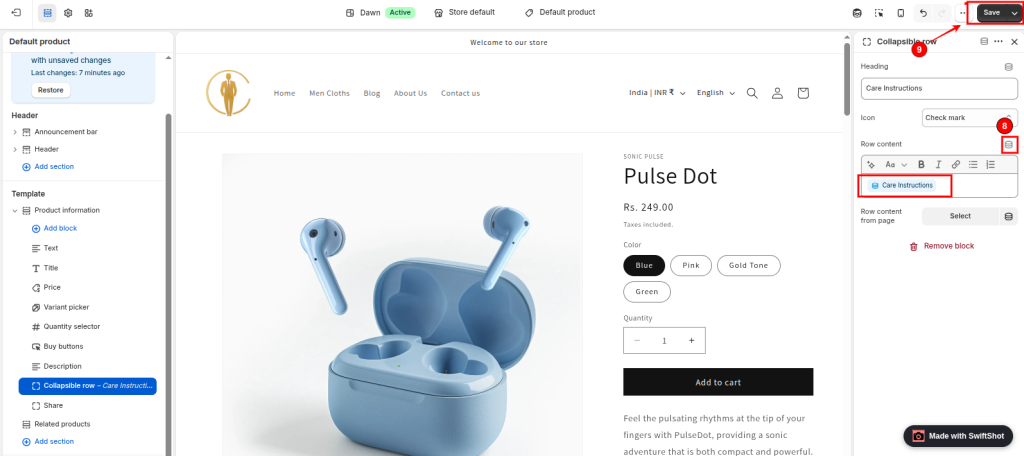
Care Instructions
The exact location of the dynamic-source button depends on your theme and block.
Once connected, the block pulls the value from the product being viewed instead of using one fixed piece of text.
Shopify’s current theme editor supports connecting compatible metafields directly through Dynamic source.
Step 6: Save and Test the Product Page
Click Save.
Open the storefront and check the product page.
The product should now display the value stored in its metafield.
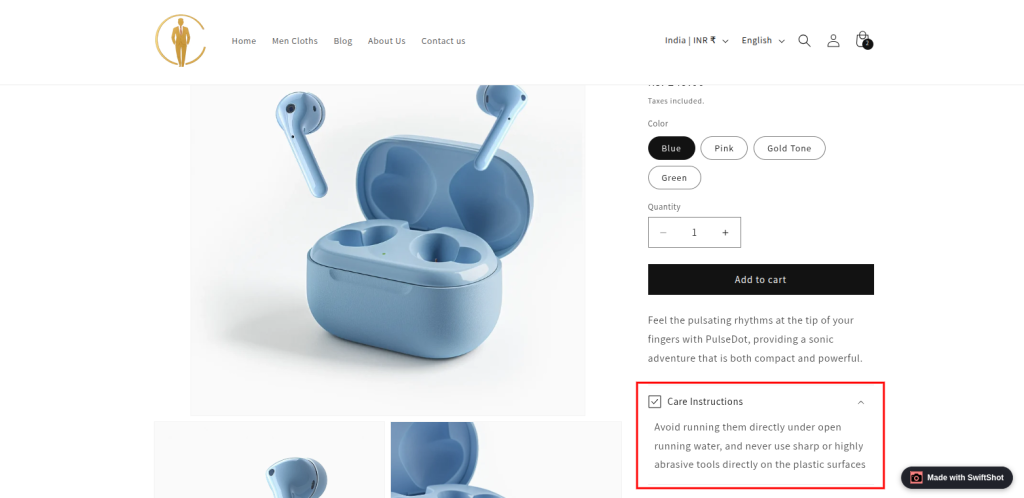
For example:
Care Instructions
The machine was cold. Do not bleach. Tumble dry low.
Open another product that has a different metafield value. The same block should automatically display that product’s information.
A product with an empty metafield won’t have product-specific content to display, allowing the same template to be used across multiple products.
Need help with custom Shopify development or store improvements? Explore our Shopify Expert Services for professional Shopify solutions.
What If the Metafield Doesn’t Appear in the Theme Editor?
This is one of the most common Shopify metafield problems.
Check that the metafield belongs to Products
Make sure you created it under:
Settings → Metafields and metaobjects → Products
A product metafield is different from a variant, collection, or shop metafield.
Check the block supports Dynamic source
Not every theme block supports every dynamic source or metafield type. Shopify explicitly notes that compatibility depends on the theme and block.
Try another compatible block, such as a text or collapsible block.
Check the metafield type
The metafield type must be compatible with the block setting you’re connecting it to.
For example, a text setting won’t necessarily accept every complex metafield type.
Check the product template
Make sure you’re editing the template actually assigned to the product you’re testing.
Recent Shopify Community discussions show this is a common source of confusion, particularly with product-page collapsible rows and dynamic sources.
Display the Metafield With Liquid
Dynamic sources are the easiest approach, but developers can also access product metafields through Liquid.
The general syntax is:
{{ product.metafields.namespace.key }}
For example, if your namespace is custom and your key is care_instructions:
{{ product.metafields.custom.care_instructions }}
Shopify’s Liquid documentation confirms that metafields are accessed using their namespace and key.
For a conditional display, you can use:
{% if product.metafields.custom.care_instructions != blank %}
<div class=”product-care”>
<h3>Care Instructions</h3>
{{ product.metafields.custom.care_instructions }}
</div>
{% endif %}
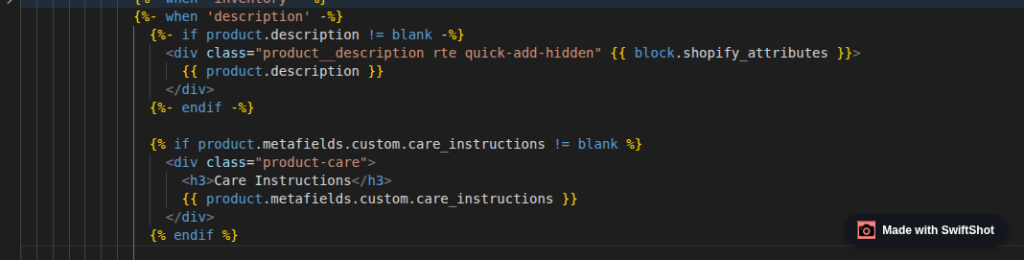
Use Liquid when your theme doesn’t provide a suitable Dynamic source option or when you need custom HTML or conditional logic. Shopify recommends code-based implementation for cases where the theme editor doesn’t support the required metafield type or functionality.
Product Metafield or Variant Metafield?
Choose the data level carefully.
Use a product metafield when the information applies to the product as a whole.
Examples:
- Material
- Ingredients
- Care instructions
- Warranty
- Product specifications
Use a variant metafield when the information is specific to an individual variant, such as a particular size or color.
A recent Shopify Community discussion also highlights this distinction when merchants want different information for individual variants.
For most information displayed once on a product page, a product metafield is the appropriate choice.
For larger and more complex Shopify stores, explore our Shopify Plus Agency services for advanced Shopify Plus solutions.
Final Thoughts
Adding product metafields to a Shopify page is one of the easiest ways to make product data more structured and product pages more informative.
The process is straightforward:
Create the metafield definition → Add the value to your product → Connect it to your product template → Preview and test.
For most Shopify stores using a compatible modern theme, Dynamic source is the simplest way to display product metafields without editing theme code. When you need more control, Shopify Liquid provides a way to access metafields directly using their namespace and key.
The real advantage isn’t just adding another field to Shopify. It’s creating a cleaner product-data structure that can scale as your catalog grows.
This guide is brought to you by Softpulse Infotech, helping Shopify merchants build, customize, optimize, and scale their ecommerce stores with practical Shopify solutions.