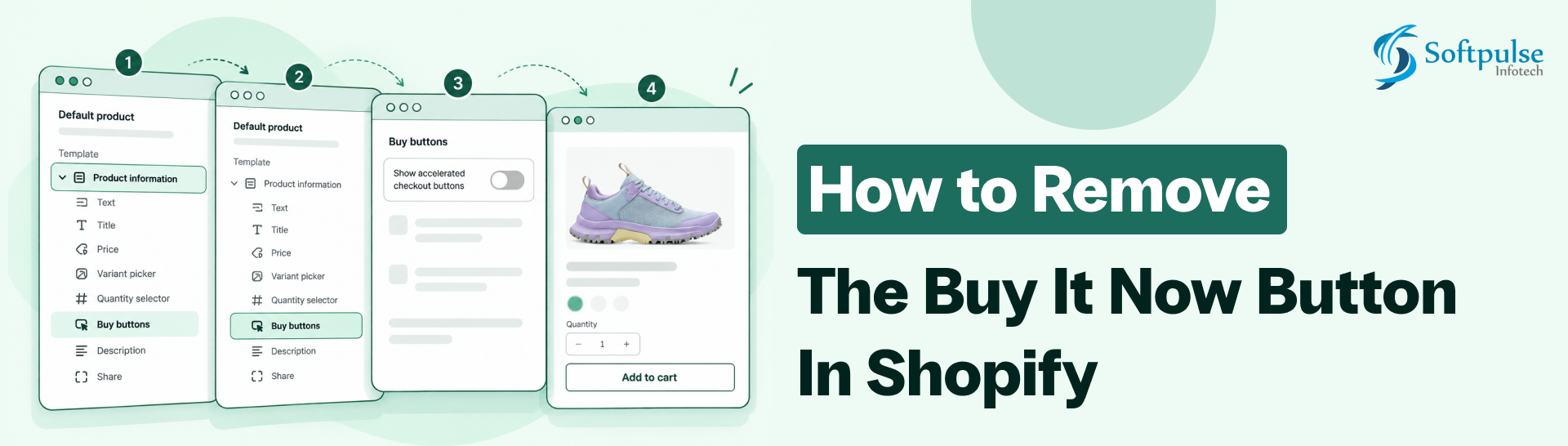
Seeing a “Buy it now” button next to the regular Add to cart button on your Shopify product page?
If you want customers to add products to their cart before going to checkout, you can hide the Buy it now button directly from Shopify’s Theme Editor.
For current Shopify themes, the setting is called Show accelerated checkout buttons. In some older themes, you may still see Show dynamic checkout buttons. Both refer to accelerated checkout options that let customers skip the cart and go straight to checkout.
The good news is that you usually don’t need to edit Liquid, JavaScript, or CSS to remove this button.
In this guide, you’ll learn exactly how to hide the Buy it now button from a Shopify product page.
What is the “Buy it now” Button in Shopify?
The Buy it now button is Shopify’s unbranded accelerated checkout button. It gives customers a faster route from a product page to checkout, so they don’t have to go through the cart.
Depending on the customer’s device, browser, payment settings, and available payment methods, Shopify may also display branded accelerated checkout buttons such as Shop Pay, Apple Pay, Google Pay, PayPal, Amazon Pay, or Venmo.
For example, a product page typically shows “Add to cart” or “Buy it now”.
If you turn off accelerated checkout buttons, the product page will generally show the regular Add to cart button without the accelerated checkout button.
How to Remove the “Buy it now” Button in Shopify
You can remove the button through your Shopify Theme Editor in just a few steps.
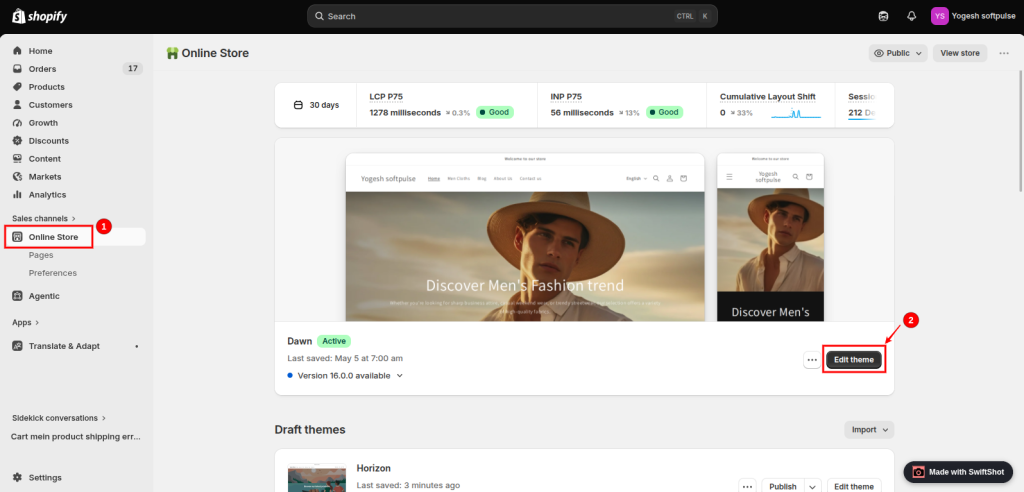
Step 1: Open Your Shopify Theme Editor
Log in to your Shopify admin.
Go to: Online Store → Themes.
Find the theme containing the product page you want to change.
Click: Edit theme
This opens Shopify’s Theme Editor.
Step 2: Open the Product Template
Once the Theme Editor opens, use the page selector at the top of the editor.
Select: Products → Default product.
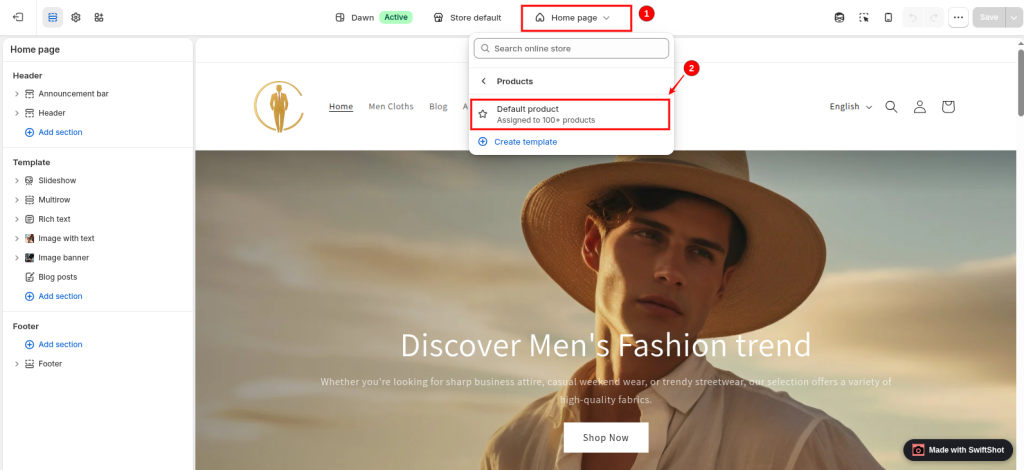
If your store uses different product templates, select the template assigned to the products where you want to hide the Buy it now button.
For example, you might have:
- Default product
- Clothing
- Electronics
- Custom product
The setting applies to the product template you’re editing, so make sure you’re working on the correct template.
Why the product template matters
Shopify allows different products to use different product templates. Therefore, turning off accelerated checkout buttons on one template doesn’t necessarily remove them from every product template in your store.
If you want the button hidden across different product templates, check each relevant template.
Step 3: Open the Buy Buttons Block
In the left-hand panel, find: Product information.
Inside this section, look for: Buy buttons.
Click the Buy buttons to open their settings.
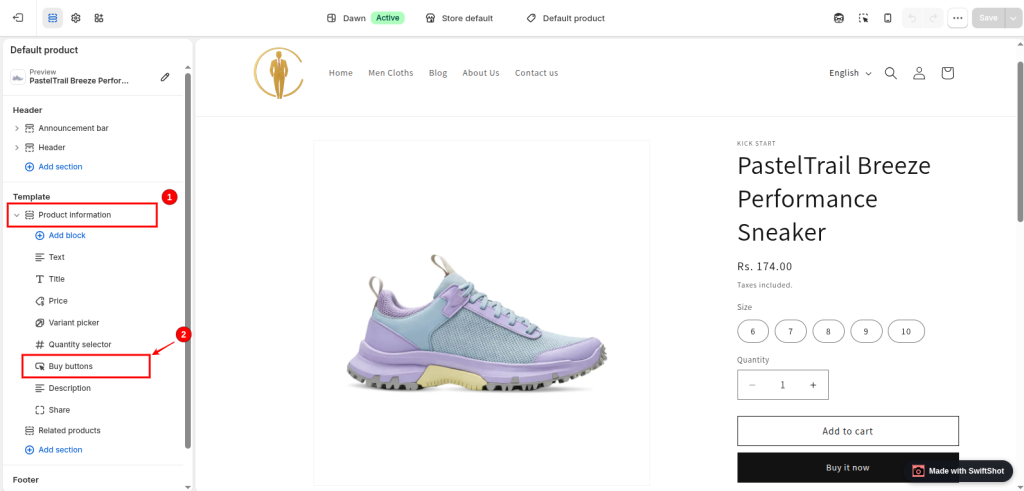
The exact appearance of the Theme Editor can vary slightly depending on your Shopify theme and theme version.
Step 4: Disable Accelerated Checkout Buttons
Inside the Buy buttons settings, look for:
Show accelerated checkout buttons.
Turn this setting off.
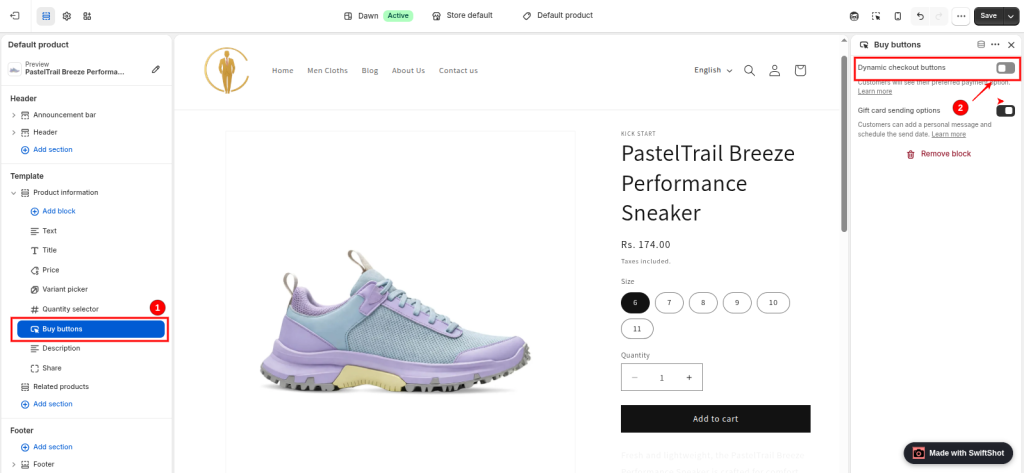
In some older themes, you may see:
Show dynamic checkout buttons.
instead.
If you see the older wording, turn off that option.
Shopify’s current documentation uses “accelerated checkout buttons” as the primary term, while Shopify notes that some themes may use the “Dynamic checkout buttons” label.
What happens after turning it off?
The accelerated checkout button will no longer appear on the product page using that template.
Your customers can still use the normal “Add to cart” button and continue through your store’s regular cart and checkout flow.
Step 5: Save Your Changes
After turning off the setting, click: Save
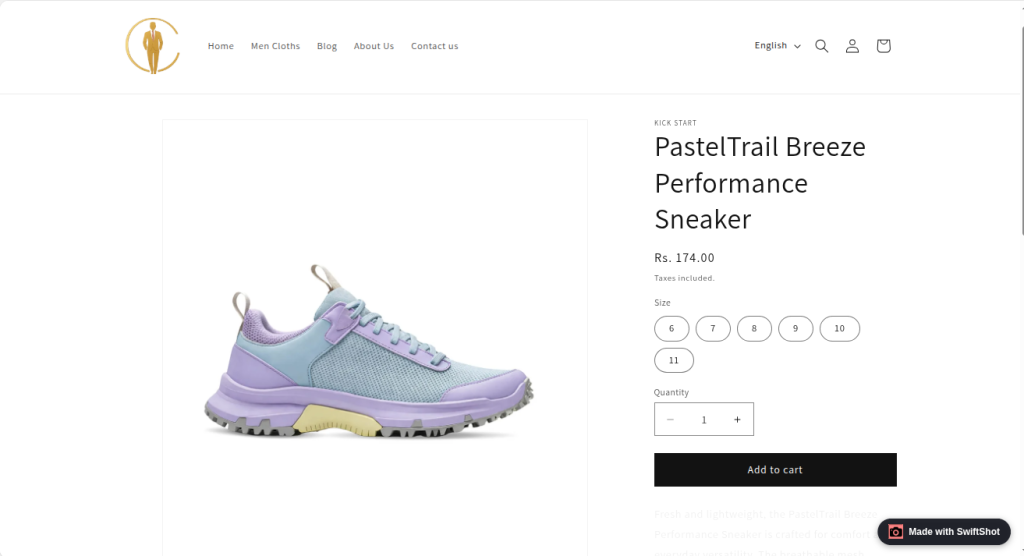
Your product page should now display the normal Add to cart button without the Buy it now accelerated checkout button.
Open the storefront and check one of the products using the edited template to confirm the change.
Need to hide the Add to cart button too? You can also follow Shopify’s official guide on how to hide the Add to cart button.
Need to add sizing information to your product pages? Check out our guide on how to add a size chart to a Shopify product page using Shopify’s native metafields and pop-up functionality.
How to Remove the Buy It Now Button From Only Some Products
You don’t necessarily have to hide accelerated checkout buttons across every product page.
Shopify supports using alternate product templates when you want different products to have different settings. You can create an alternate product template, assign it to selected products, and then turn accelerated checkout buttons on or off independently for products using that template.
For example, you could have:
- Default product template → Buy it now enabled
- Custom product template → Buy it now disabled
This approach is useful if only certain products need customers to follow the standard cart flow.
Why Do Shopify Merchants Remove the “Buy it now” button?
There are several reasons a merchant may prefer to keep customers on the normal cart flow.
For example, a store may want customers to:
- Add multiple products before checkout
- Review their cart before paying
- Apply or review cart-level information
- Follow a specific cart-based purchasing workflow
- Use custom cart functionality
- Complete additional steps before checkout
Accelerated checkout buttons allow customers to skip the cart and proceed directly to checkout for the selected product.
If your store depends on cart attributes or a cart-based workflow, Shopify specifically notes that accelerated checkout buttons may not be suitable.
How to Check Whether the Button Has Been Removed
After saving your theme changes:
- Open your Shopify storefront.
- Navigate to a product using the edited product template.
- Scroll to the product purchase area.
- Confirm that Add to cart is still visible.
- Confirm that the “Buy it now” or “accelerated checkout” button is no longer displayed.
- Test the Add to cart flow.
- If you have multiple product templates, test products using each relevant template.
You can also use Shopify’s storefront preview before publishing theme changes if you’re working on an unpublished theme.
Final Thoughts
Removing the Buy it now button from a Shopify product page is straightforward when your theme supports Shopify’s accelerated checkout settings.
Before making code changes, check your theme’s built-in settings and available updates. For most current Shopify themes, the Theme Editor provides the simplest way to control accelerated checkout buttons without touching your theme code.
If your store uses a customized theme or requires a more specific product-page checkout flow, Softpulse Infotech can help Shopify merchants troubleshoot theme-level checkout customizations and safely implement Shopify-specific storefront changes. Hire Shopify Experts Now.
Frequently Asked Questions
How do I remove the Buy it now button from Shopify?
Go to Online Store → Themes → Edit theme, select Products → Default product, open Product information → Buy buttons, and turn off Show accelerated checkout buttons. Then click Save.
Is “Buy it now” the same as an accelerated checkout button?
Yes. Shopify’s unbranded accelerated checkout button displays the “Buy it now” text. Branded accelerated checkout buttons can display payment methods such as Shop Pay, Apple Pay, Google Pay, PayPal, Amazon Pay, or Venmo, depending on availability.
Why can’t I find “Show accelerated checkout buttons” in my Shopify theme?
The setting may use the older Show dynamic checkout buttons wording, or your theme may not support the current setting. Shopify recommends updating an older theme or editing the theme code if the setting isn’t available.
Can I remove the Buy it now button without editing code?
Yes. Current Shopify themes generally let you hide accelerated checkout buttons through the Theme Editor, so you don’t need to modify Liquid, JavaScript, or CSS for this standard customization.
Can I remove the Buy it now button from only one product?
Yes, if you use an alternate product template. Create an alternative template, assign it to the relevant product, and turn off accelerated checkout buttons for that template.
Will removing Buy it now turn off checkout?
No. It only hides the accelerated checkout buttons from the relevant product page. Customers can still use Add to cart and proceed through the normal checkout process.
Can I hide only PayPal or Shop Pay but keep Buy it now?
The Theme Editor doesn’t provide a setting to selectively show or hide individual accelerated checkout buttons on the product page. Shopify treats these as accelerated checkout options and allows you to display or hide the accelerated checkout buttons as a group.
Do I need an app to remove the Buy it now button?
No. For current compatible Shopify themes, the built-in Theme Editor setting is sufficient. An app is generally unnecessary for this basic customization.