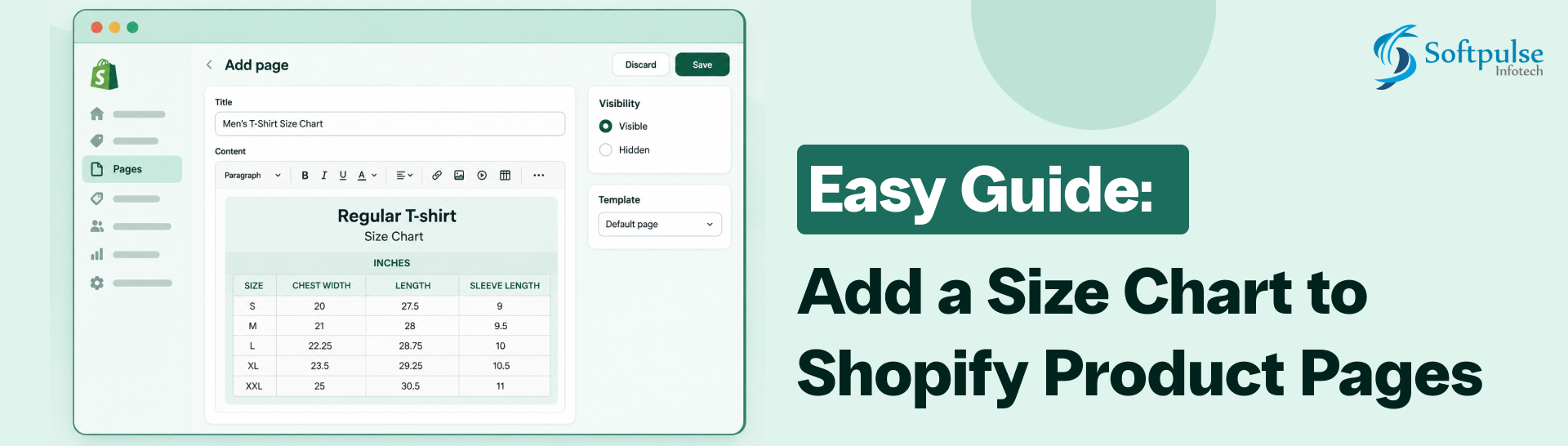
A size chart is one of the most useful pieces of information you can add to a Shopify product page, especially if you sell clothing, footwear, accessories, or products where dimensions matter.
The good news is that you don’t necessarily need a size-chart app or custom coding. Shopify provides a native Pop-up block that can display a size chart from a Shopify Page.
In this guide, you’ll learn how to create a product-specific size chart using a Page reference metafield and Shopify’s native pop-up functionality.
Once configured, your product page can display a simple link, such as “Size Chart.” When a customer clicks it, the size chart opens in a pop-up without taking them away from the product page.
What You’ll Create
The setup uses three Shopify features:
- A Product metafield to store the size-chart page assigned to each product
- A Shopify Page containing your actual size chart
- A native Pop-up block connected to the metafield through a dynamic source
This setup also allows different products to use different size charts.
For example:
| Product | Assigned Size Chart |
| Men’s Oversized T-Shirt | Men’s Oversized T-Shirt Size Chart |
| Men’s Regular Fit Shirt | Men’s Shirt Size Chart |
| Women’s Dress | Women’s Dress Size Chart |
Shopify’s own size-chart tutorial uses this same Page reference + Pop-up approach.
Before You Start
Make sure you have:
- Access to your Shopify admin
- Permission to edit product metafields and products
- A Shopify theme that supports dynamic sources
- The measurements you want to include in your size chart
The native method is designed for compatible Online Store themes. If you’re using a vintage theme or your theme doesn’t support the required dynamic source functionality, you may need theme-code customization or help from a Shopify Partner.
Need to add size, color, or other product options to your Shopify store? Learn how to create and manage Shopify product variants.
Step 1: Create a Product Size Chart Metafield
First, create a product metafield to store the size chart page assigned to each product.
A metafield is a custom data field that lets Shopify store information not included in the standard product fields. Shopify specifically supports using product metafields for size charts.
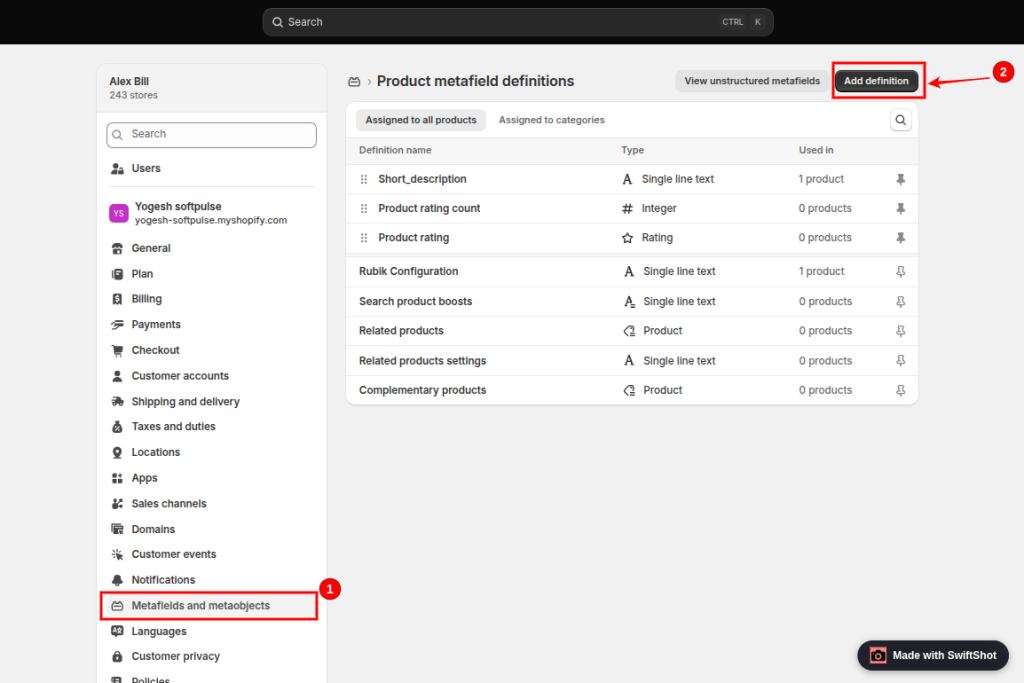
1. Open Shopify Metafields
From your Shopify admin, go to: Settings → Metafields and metaobjects
Under Metafield definitions, select: Products
Then click: Add definition
2. Enter the Metafield Details
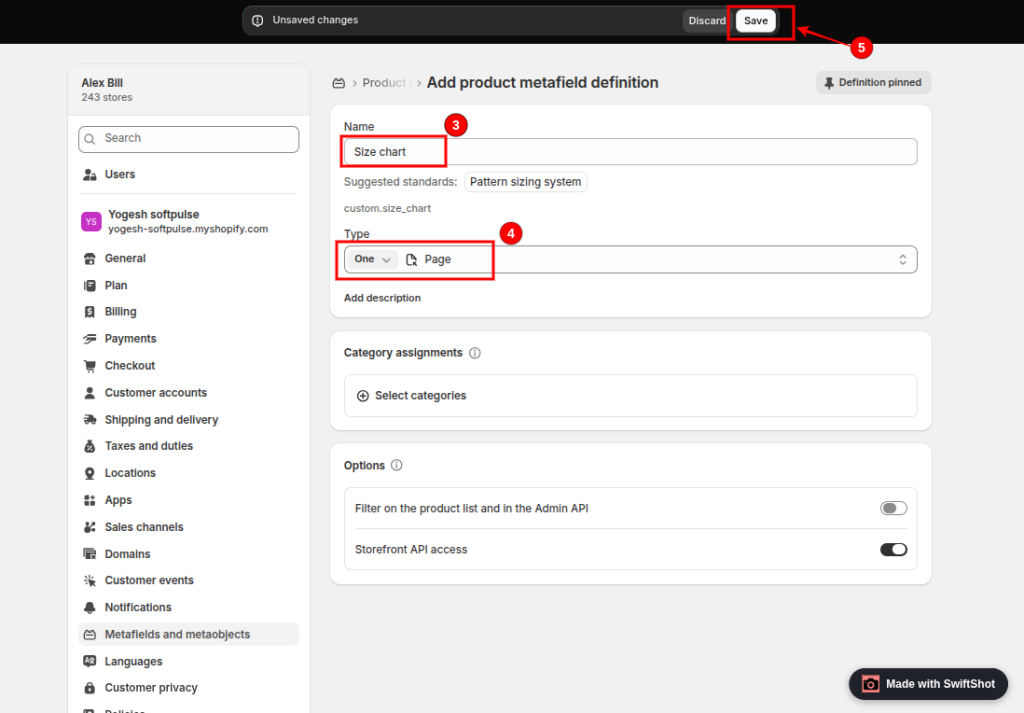
Use the following settings:
Name: Size chart
Namespace and key: custom.size_chart
Shopify may automatically generate the namespace and key after you enter the name. If it suggests the same custom name.size_chart namespace and key, you can use it.
The important part is the metafield Type.
3. Select Page as the Type
Under Select Type, choose: Page
For this setup, use a single Page reference rather than a list, since each product will point to a single size-chart page.
Shopify’s current documentation specifically recommends using the Page reference metafield for its native pop-up size chart workflow.
Click: Save
Your product now has a Size chart metafield that can reference a Shopify Page.
Step 2: Create Your Size Chart Page
Next, create the Shopify Page that contains the actual size-chart information.
You can create different pages when different products or product categories require different measurements.
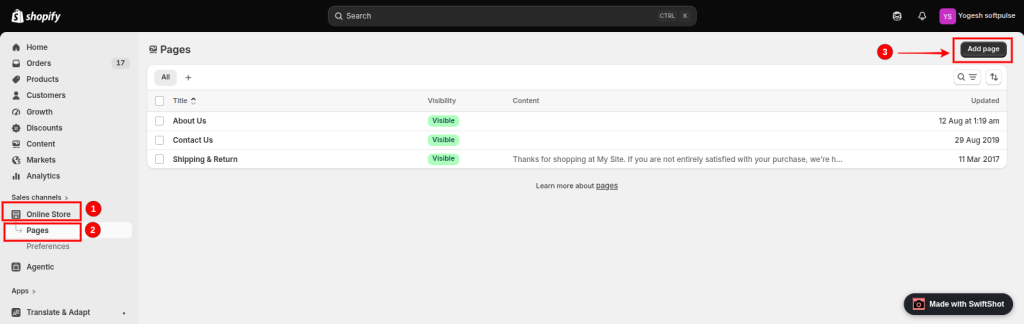
1. Go to Shopify Pages
From your Shopify admin, go to: Online Store → Pages
Click: Add page
2. Add a Size Chart Title
Give the page a descriptive name.
For example: Men’s T-Shirt Size Chart
If you sell different types of products, you could create pages such as:
3. Add Your Measurements
Enter the measurements customers need to select the correct size.
For example:
| Size | Chest | Length | Shoulder |
| S | 38″ | 27″ | 17″ |
| M | 40″ | 28″ | 18″ |
| L | 42″ | 29″ | 19″ |
| XL | 44″ | 30″ | 20″ |
You can also add an image, Shopify pages support rich content, so your size chart doesn’t have to be a simple text table.
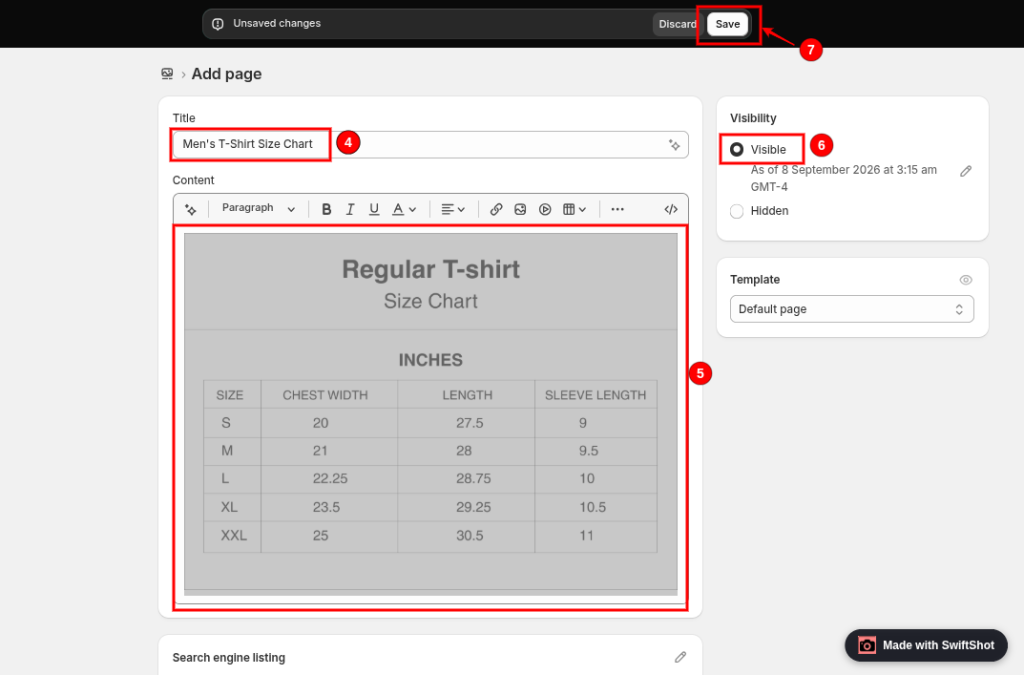
You can create as many size-chart pages as you need. However, the Page reference metafield in this setup is configured to reference a single page per product.
Step 3: Add the Size Chart Pop-up to the Product Template
Now connect your size-chart metafield to Shopify’s native Pop-up block.
This is what turns the size-chart page into a clickable pop-up on the product page.
Option 1: Add It to an Existing Product Template
If all products using a particular product template should have a size chart, you can add the pop-up directly to that template.
Go to: Online Store → Themes → Edit theme
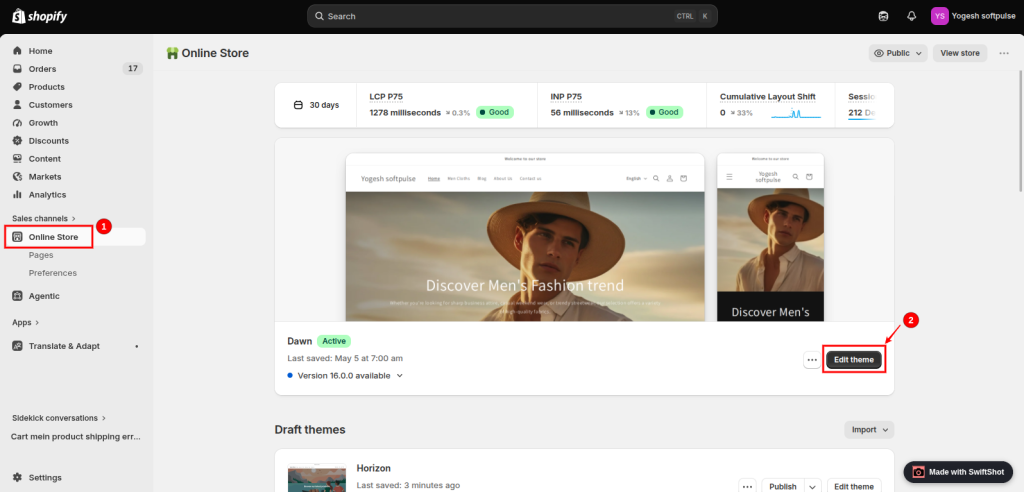
Use the page selector at the top of the theme editor and open your: Product template
Under the Product information section, click: Add block
Then select: Pop-up
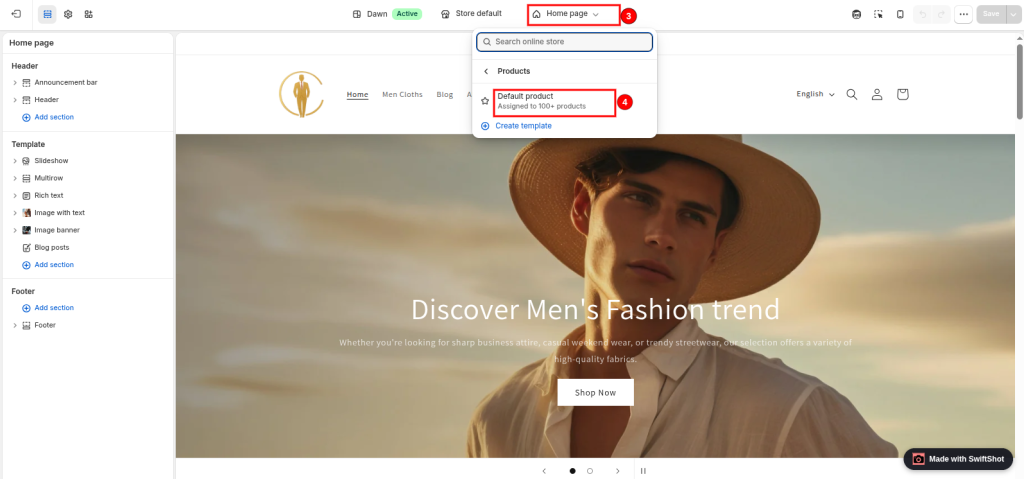
Shopify’s current instructions use the Product information blocks area to add the native Pop-up block.
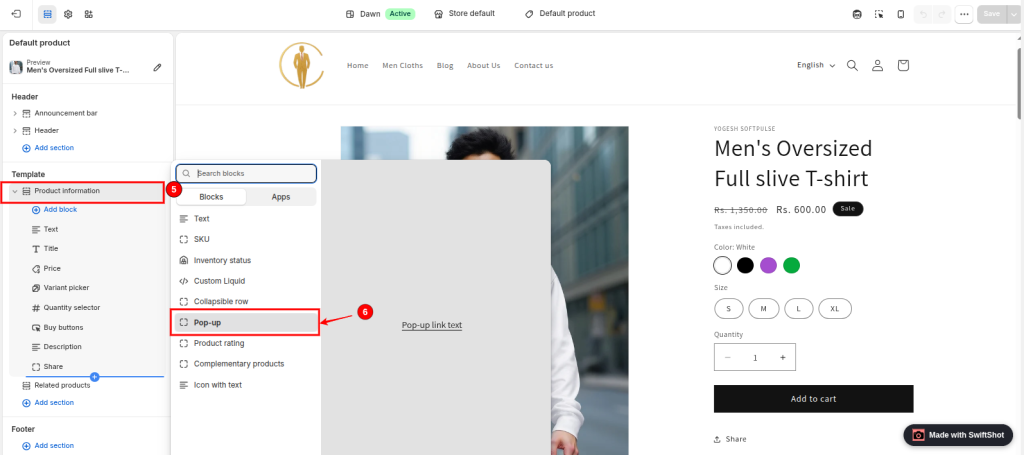
Configure the Pop-up
You should now see the pop-up settings.
Link label
Enter: Size Chart
This is the clickable text that customers will see on the product page.
You can use another label if you prefer, such as:
- View Size Chart
- Size Guide
- Check Your Size
- Size & Fit Guide
For simplicity, the Size Chart is usually the clearest option.
Page
Next to the Page field, look for the dynamic source icon.
Click it.
Select the product metafield you created earlier: Size chart.
This links the pop-up to the size chart page for the current product.
Shopify’s dynamic source system allows compatible theme blocks to use product metafields as their content source.
Click: Save
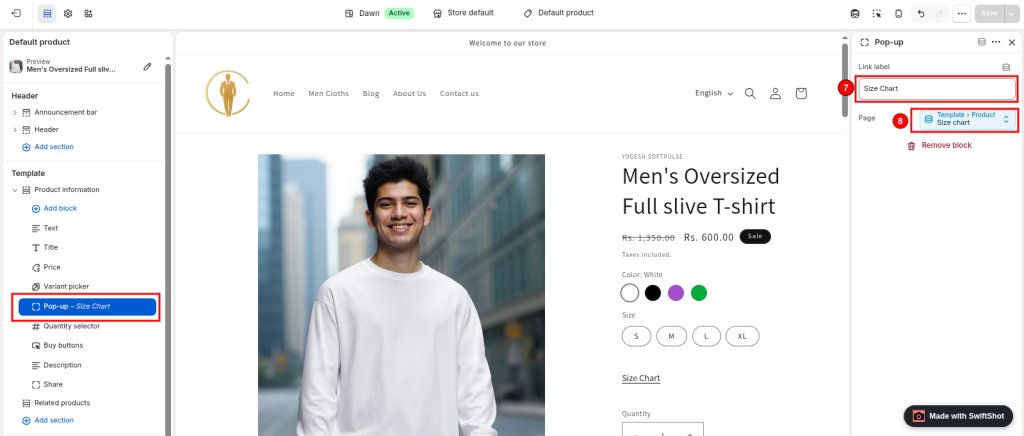
The pop-up is now connected to the product metafield.
Step 4: Assign the Size Chart to a Product
The pop-up is configured, but you still need to tell Shopify which size chart page to display for each product.
You do this from the product’s Metafields section.
1. Open the Product
Go to: Products → All products
Select the product where you want to add the size chart.
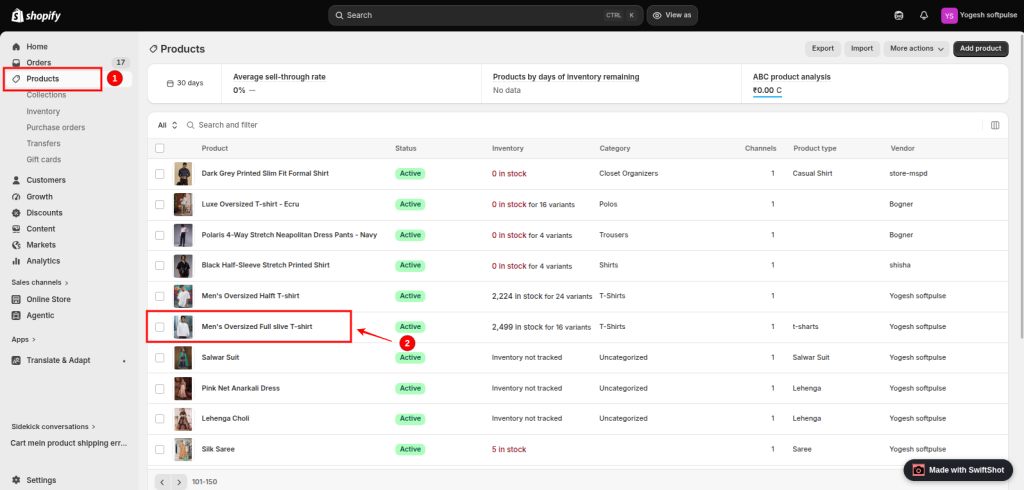
2. Find the Metafields Section
Scroll down to the Metafields section.
Find: Size chart
This is the metafield you created in Step 1.
3. Select the Size Chart Page
Click the Size chart field.
Select: Select page
Then choose the appropriate size-chart page.
For example: Size chart → Men’s T-Shirt Size Chart
Shopify’s current instructions use the same Page reference workflow to assign a page to a product metafield.
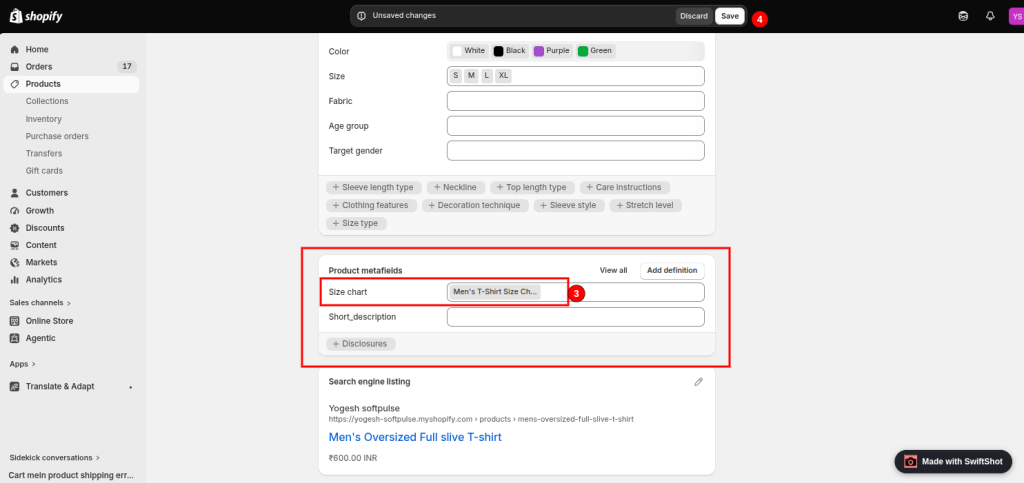
4. Save the Product
Click: Save
The product now knows which size chart page to display when the customer clicks the Size Chart link.
Step 5: Check the Size Chart on the Storefront
Now open the product page on your storefront.
You should see your clickable link, for example:
Size Chart
Click the link.
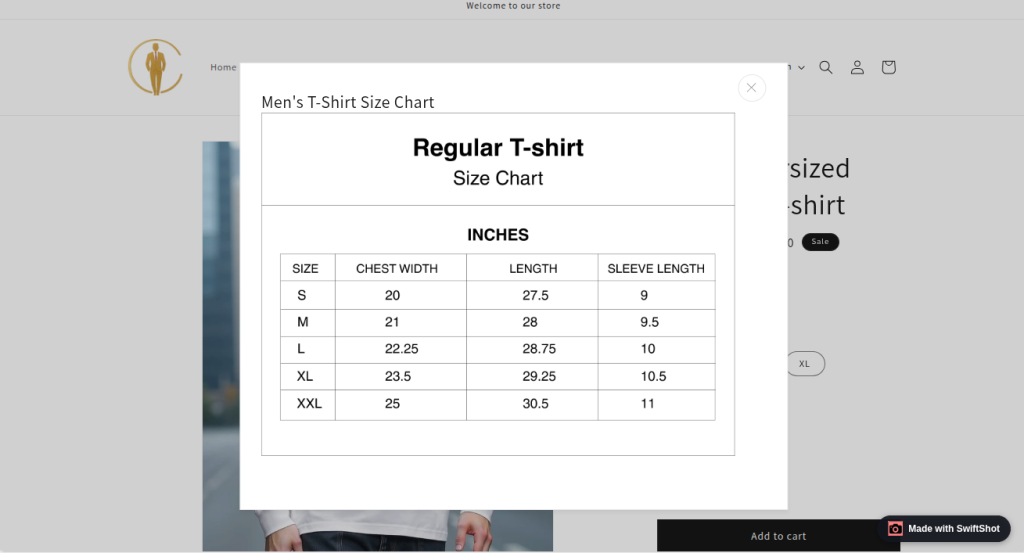
The size chart page should open in Shopify’s pop-up.
The customer can read the measurements and close the pop-up without leaving the product page.
This is the main advantage of using Shopify’s native pop-up method: the size information remains accessible while the customer is viewing the product.
How to Add Different Size Charts for Different Products
One of the biggest advantages of using a product Page reference metafield is that you don’t have to use one size chart for your entire store.
Each product can reference a different Shopify Page.
For example:
Product A
Men’s Oversized T-Shirt → Men’s Oversized T-Shirt Size Chart
Product B
Men’s Regular Fit Shirt → Men’s Shirt Size Chart
Product C
Women’s Dress → Women’s Dress Size Chart
Product D
Women’s Jeans → Women’s Jeans Size Chart
The same product template can be used for all of these products.
The Size chart metafield determines which page is loaded in the individual product popup.
This is especially useful for stores selling multiple clothing categories, brands, fits, or product types with different measurements.
How to Show the Size Chart Only on Selected Products
You may not want a Size Chart link on every product. For example, a clothing store may need size charts for shirts and dresses but not for accessories.
In that case, Shopify recommends creating a separate product template for products that need the popup.
Create a Separate Product Template
From your Shopify admin, go to: Online Store → Themes → Edit theme
Use the page selector to open the product templates.
Create a new product template, for example:
Products with size chart
Add the Pop-up block to this template and connect its Page field to the Size chart metafield.
Then assign this template to products that need a size chart.
Products that don’t need a size chart can continue using your normal product template.
This keeps the storefront cleaner and prevents unnecessary size-chart links from appearing on products where they aren’t relevant.
Important Technical Limitation: Don’t Leave the Metafield Empty
There is one important detail to check when using this native setup.
If a product uses the product template containing the popup but you haven’t assigned a page to its Size chart metafield, the popup link can still appear even though there is no size-chart page connected.
Shopify specifically warns that the link text can continue to display when the page reference is empty, potentially resulting in an empty popup.
Therefore, you have two practical options:
- Assign a size-chart page to every product using the size-chart template, or
- Use a separate product template and assign it only to products that have a size chart.
The second option is usually better for stores with different product types.
Do You Need a Shopify Size Chart App?
Not necessarily.
If your requirements are straightforward, Shopify’s native Page reference + Pop-up method can handle the basic job without installing another app.
The native approach is particularly suitable when you need:
- A clickable Size Chart link
- A popup display
- Different size charts for different products
- No additional size-chart app
- A simple Shopify-admin workflow
An app may make more sense if you need advanced sizing functionality, such as interactive size recommendations, customer-specific fit calculations, complex variant-based sizing logic, or other features beyond a standard informational chart.
For a basic size-chart popup, however, the native Shopify functionality is worth trying first.
Conclusion
Adding a size chart to a Shopify product page doesn’t have to require a third-party app or custom development.
With Shopify’s native Page reference metafield and Pop-up block, you can create a clickable Size Chart link that opens the relevant sizing information directly on the product page.
The biggest advantage is flexibility. One product can use a men’s T-shirt chart while another uses a women’s dress chart, even when both products use the same product template.
If your Shopify store requires additional customization beyond the native functionality, the Shopify development team at Softpulse Infotech can help implement a tailored solution while keeping the storefront easy for your customers to use.
Frequently Asked Questions
1. Can I add a size chart to Shopify without an app?
Yes. Shopify provides a native method using a Product Page reference metafield connected to the theme’s Pop-up block. You can create the size chart content as a Shopify Page and assign it to products.
2. Can I use a different size chart for each product?
Yes. The Page reference metafield is stored on the product so that different products can reference different size-chart pages.
For example, a T-shirt uses a T-shirt size chart, while a dress uses a dress size chart.
3. What type of metafield should I use for a Shopify size chart?
For Shopify’s native pop-up size-chart workflow, use a Product metafield with the Page type. Shopify’s official tutorial specifically uses a Page reference for this purpose.
4. What should the namespace and key be?
You can use: custom.size_chart
Shopify can also generate the namespace and key when you create the definition. The important requirement for this workflow is that the metafield is a Product metafield of type Page.
5. Can I add an image to my Shopify size chart?
Yes. Shopify’s Page editor supports images and other media so that you can include a size chart image on the page used by the pop-up.
6. Can I use the same size chart for multiple products?
Yes. Multiple products can reference the same size chart page.
For example, several men’s T-shirts can all use the same Men’s T-Shirt Size Chart page.
7. Can I create different-sized charts for different product categories?
Yes. You can create separate pages for different product types and assign the appropriate page to each product.