If your Shopify store supports multiple languages, you may want customers to see the language that matches their browser preferences automatically. Shopify’s automatic language redirection can do this without requiring merchants to build a custom JavaScript redirect.
However, enabling the setting alone doesn’t guarantee every visitor will immediately see the expected language. Shopify considers the visitor’s browser language, the languages published for the relevant market, the customer’s previous localization choice, and the store’s Markets configuration.
This guide explains how Shopify automatic language redirection works, how to configure it, how to test it correctly, and what to check when it doesn’t redirect as expected.
What Is Shopify Automatic Language Redirection?
Shopify’s automatic language redirection detects a customer’s browser language preference and attempts to display the corresponding published language for the market that the customer is visiting.
For example, imagine a store has:
- English as the default language
- French as an additional language
- French published for the relevant market
- A French URL such as example.com/fr
If a customer’s browser has French configured as its preferred language and Shopify’s language redirection is enabled, Shopify can direct that visitor to the French version.
Shopify states that browser language preferences are used when determining which language to display.
Shopify introduced this feature to redirect visitors based on their browser language, as noted in the Shopify changelog announcement.
Before Testing: Make Sure Your Store Is Ready
Step 1: Check Your Published Store Languages
Before testing automatic language redirection, make sure the language you want to test is available in your Shopify store.
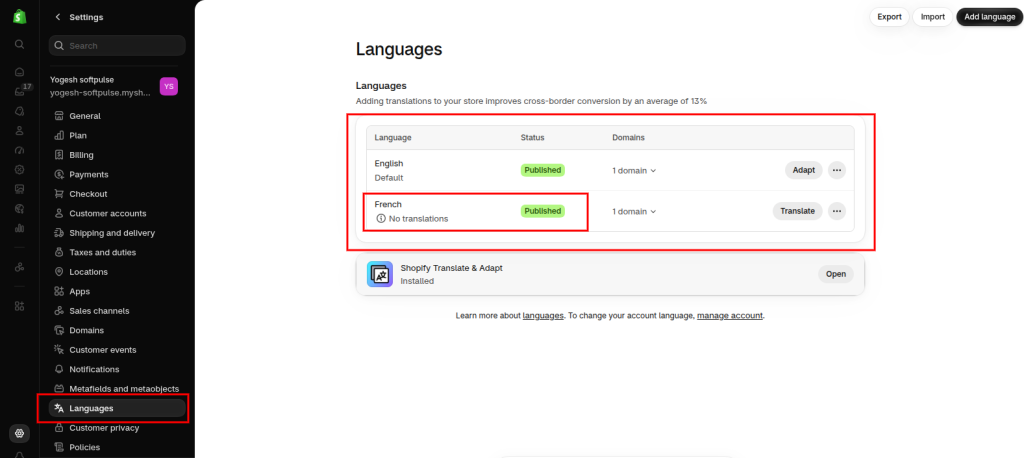
Go to: Shopify Admin → Settings → Languages
Check that the language you want to test has been added and published.
For example:
English – Published
French – Published
German – Published
Adding a language through a translation app doesn’t necessarily mean it’s available to customers yet. The language must be published and assigned to the appropriate domain or market.
You can manage your published languages and their domain assignments from the Languages section of your Shopify admin.
Step 2: Verify the Language Is Assigned to the Correct Market
Adding a language to the store is only part of the setup. For help adding languages and domains to a market, see the Shopify Markets setup guide.
Next, check the relevant market under:
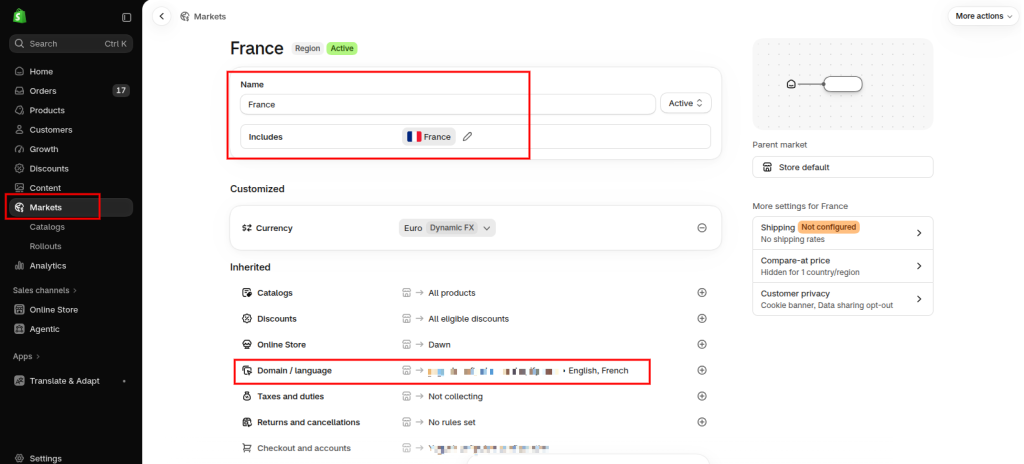
Shopify Admin → Settings → Markets
Open the market where you want the language to be available and review its domains and languages configuration.
For example:
Market: France
Domain: example.com/fr
Languages: English, French
A language may exist in your Shopify store but still not be available for the market you are testing.
Make sure the language is published and available for the domain or market you are testing. Having a language published in your store doesn’t automatically mean it is available on every market or domain.
Shopify’s domain and language configuration determines which language/domain combination customers can receive. Not sure which plan suits a multi-market store? Here’s how Shopify and Shopify Plus compare.
Step 3: Check the Language URL
Before testing automatic redirection, test the language URL manually.
Suppose your English store is: https://example.com/
and French is: https://example.com/fr/
Open the French URL directly.
The page should:
- Load successfully
- Display the French translation
- Keep the correct market
- Show translated theme content
- Display translated product/page content where translations exist
Shopify creates language-specific URLs when additional languages are published. Language codes can be used in URL structures such as /fr or /es.
If translated content doesn’t appear correctly in your theme, you may need professional Shopify theme customization to make sure every section supports multiple languages
Step 4: Enable Automatic Language Redirection
Once the language and market configuration is correct, enable the Shopify setting. You can find the full setup details in Shopify’s automatic redirection documentation.
Go to: Shopify Admin → Online Store → Preferences
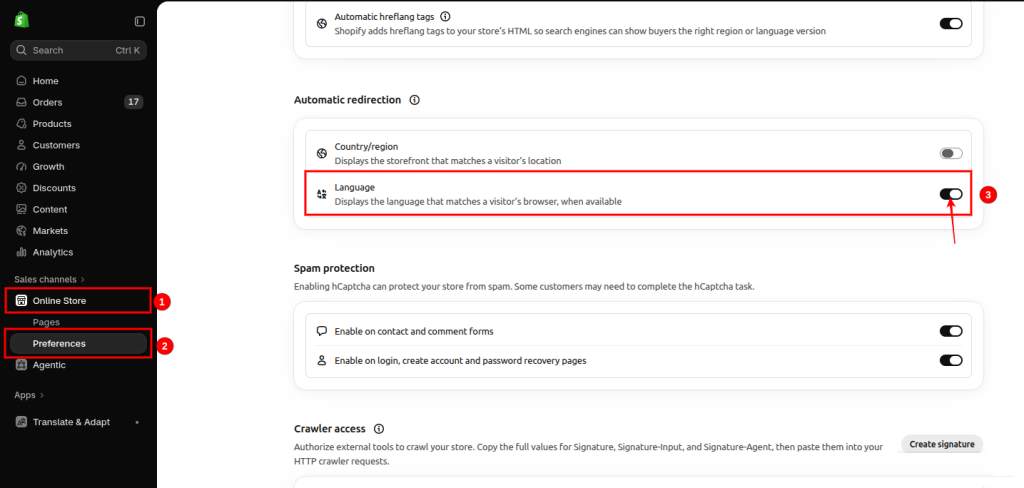
Find: Automatic redirection
Shopify provides separate settings for automatic country/region redirection and language redirection.
For this test, you only need to enable the Language option. Country/region redirection is a separate setting and is not required to test browser language-based redirection.
Shopify’s current documentation lists the path as Online Store → Preferences → Automatic redirection, where the Language setting can be enabled
Step 5: Configure Your Browser Language
This is one of the most important steps in testing.
Changing your computer’s display language does not necessarily change your browser’s preferred language.
Shopify uses the browser’s preferred language to determine which language version to display when automatic language redirection is enabled.
Make sure the language you want to test is at the top of your browser’s preferred language list.
For example, if you want to test French, configure the browser so French is preferred over English.
Your browser may have a language priority similar to: French or English
Instead of:English or French
The steps may vary depending on your browser.
Chrome: Open your browser settings, navigate to Languages, and add the target language (like French /fr or Spanish /es). Move it to the very top of your priority list as the primary language.
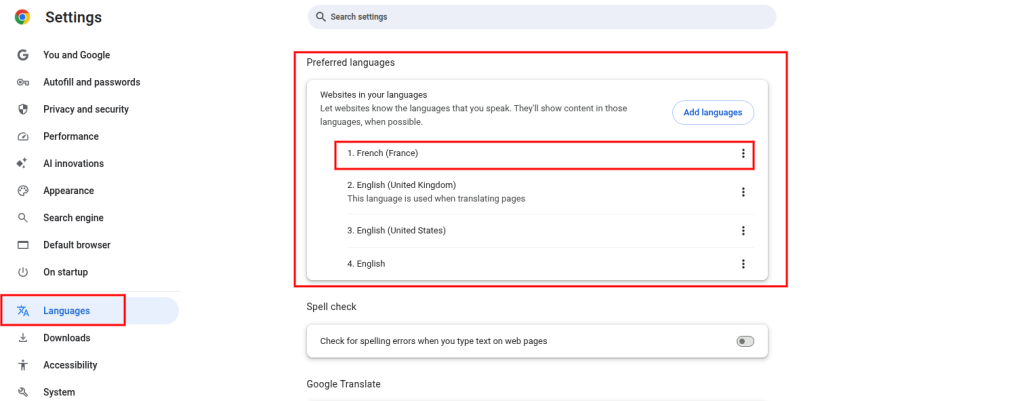
For example: French or English
You can follow Google’s guide to change Chrome’s language settings if you need more detail.
Step 6: Test in an Incognito or Private Window
This is one of the most important testing steps.
Open a Chrome Incognito window or another browser’s private window and visit your store’s base URL, not the language-specific URL.
For example: https://example.com/
Make sure you haven’t manually selected a language before starting the test.
The purpose is to test whether Shopify makes the language decision when the visitor initially enters the store.
Shopify Community discussions specifically recommend using an incognito/private window and avoiding existing localization cookies when testing automatic language redirection.
Why Shopify Language Redirection May Not Work
If your test doesn’t produce the expected result, don’t immediately assume the Shopify feature is broken. If you’ve checked all of these and the redirect still fails, you can hire Shopify developers to audit your Markets, domains, and language setup.
Check these common causes.
1. The language isn’t published
The language may have been added but not published.
Solution: Verify that the language is published and available for the relevant market.
2. The language isn’t assigned to the market
Your store might support French globally, but the specific market being tested may not have French configured.
Solution: Review the market’s domain and language configuration.
3. You are testing with an existing cookie/session
This is extremely common.
If you previously selected: English
Shopify may remember that localization choice.
Shopify states that when customers manually select a country or language, their preference is saved for future visits.
Solution:
- Open a private/incognito window.
- Visit the base store URL.
- Avoid manually selecting a country or language before testing.
- Check whether the store redirects based on your browser’s preferred language.
If the issue persists, clear the store’s localization cookies and try again in a fresh browser session.
4. Browser Language Isn’t Actually the Language You Think It Is
A computer might display its interface in French while Chrome’s preferred website language is still English.
Check the browser’s language priority directly.
5. A VPN Is Giving You an Unexpected Location
Shopify’s automatic country/region redirection relies on IP-based geolocation.
IP geolocation isn’t always accurate, especially when visitors use:
- VPNs
- Corporate networks
- Certain mobile carriers
Shopify specifically recommends keeping country and language selectors available because automatic localization can sometimes identify a customer incorrectly.
Important Update: Shopify’s Geolocation App
If you’re following older Shopify tutorials, you may see instructions recommending the Shopify Geolocation app.
Those instructions are outdated.
Shopify stopped new installations of the Geolocation app on February 1, 2025, and shut down and uninstalled the app on March 24, 2025.
Shopify’s current localization tools include native automatic domain and browser-language redirection.
Important: Automatic Redirection for EU Visitors
Shopify restricts automatic redirection within the European Union for certain domain configurations to comply with localization requirements.
If your store uses an EU top-level domain, such as `.fr` or `.de`, automatic redirection may not work as expected for EU visitors.
Depending on your store’s configuration, you may need to use a consent-based localization solution instead of automatically redirecting visitors.
Keep a country and language selector available so customers can manually choose their preferred storefront.
Stores selling across many countries and domains often need a more advanced setup, and a Shopify Plus agency can help plan and manage it.
Localization settings can change as your store grows, so ongoing Shopify support and maintenance helps keep your languages and markets working correctly.
Frequently Asked Questions
1. Does Shopify automatic language redirection use an IP address?
No, not for language selection itself. Language redirection uses the customer’s browser language preference. IP-based location is used for determining the customer’s market/country experience.
2. Do I need a VPN to test language redirection?
No. A VPN can be useful when testing country/region localization, but changing the browser’s preferred language is the important part of a language-redirection test.
3. Why does language redirection work in incognito but not normal mode?
A previous localization choice or stored browser data may be affecting the normal session. Shopify saves manually selected localization preferences, so a private window is a useful way to test a cleaner visitor session.
4. Does Translate & Adapt automatically redirect customers?
Translation and automatic redirection are separate pieces of the localization setup. The language must be available and published for the relevant market, while Shopify’s automatic language setting determines whether the browser language is used for automatic localization.
5. Does Shopify automatically redirect Google?
Known search-engine crawlers are excluded from customer automatic redirection so localized URLs can be crawled and indexed.
6. Why is Shopify automatic language redirection not working?
Automatic language redirection may not work if the language isn’t published, isn’t available for the relevant market or domain, the browser’s preferred language is incorrect, or a previous localization preference is saved.
Check your language settings, browser language priority, and test in a private window using your store’s base URL.
7. Does Shopify automatic language redirection work for EU visitors?
Automatic redirection may be restricted for certain EU domain configurations. If your store uses an EU top-level domain, you may need a consent-based localization solution. Check your store’s domain configuration and applicable localization requirements.
8. Does Shopify automatic language redirection affect SEO?
Shopify excludes known search-engine crawlers from customer automatic redirection. Published language versions can have language-specific URLs, allowing search engines to discover and index localized pages. To get more value from your translated pages in search, read our Shopify SEO expert guide.