Instagram Shopping makes it possible for Shopify merchants to showcase products on Instagram and tag them in posts and Stories. Customers can tap a product tag to view the product details and visit the merchant’s online store to complete their purchase.
But what if Instagram product tagging isn’t working? You may see that the Tag Products option is missing, your Shopify products don’t appear when you search on Instagram, or a product shows as unavailable.
These issues are usually related to the Instagram account, Shopify’s Facebook and Instagram connection by Meta, product availability, Meta catalog synchronization, or account eligibility.
In this guide, we’ll go through the most common causes and show you what to check before contacting support.
How Instagram Shopping Works with Shopify
Before troubleshooting, it’s useful to understand how the connection works:
Shopify Products → Facebook and Instagram by Meta Sales Channel → Meta Product Catalog → Instagram Shopping → Product Tags
Shopify also describes how product tagging works on its Instagram sales channel page.
Shopify uses the Facebook and Instagram by Meta sales channel to sync eligible products to a shared Meta product catalog. Instagram uses this catalog to make products available for shopping tags.
For a product to be tagged on Instagram, it needs to be available in both your Meta catalog and Shopify online store.
Common Reasons Instagram Product Tags Aren’t Working
Here are some of the most common causes:
- Instagram isn’t connected to the correct Facebook Page.
- The Instagram account isn’t eligible for Instagram Shopping.
- Facebook and Instagram by Meta aren’t properly connected in Shopify.
- The product isn’t published to the Meta sales channel.
- The product has a publishing or catalog error.
- The product isn’t active in the Meta catalog.
- Your domain or business assets aren’t correctly connected.
- Meta hasn’t completed its review or the account/product has a commerce restriction.
- The product doesn’t meet Meta’s Commerce Policy or product requirements.
Let’s check these one by one.
Step 1: Check Your Instagram Account
First, make sure your Instagram account is professional (Business or Creator) and is associated with the correct Facebook Page for your business.
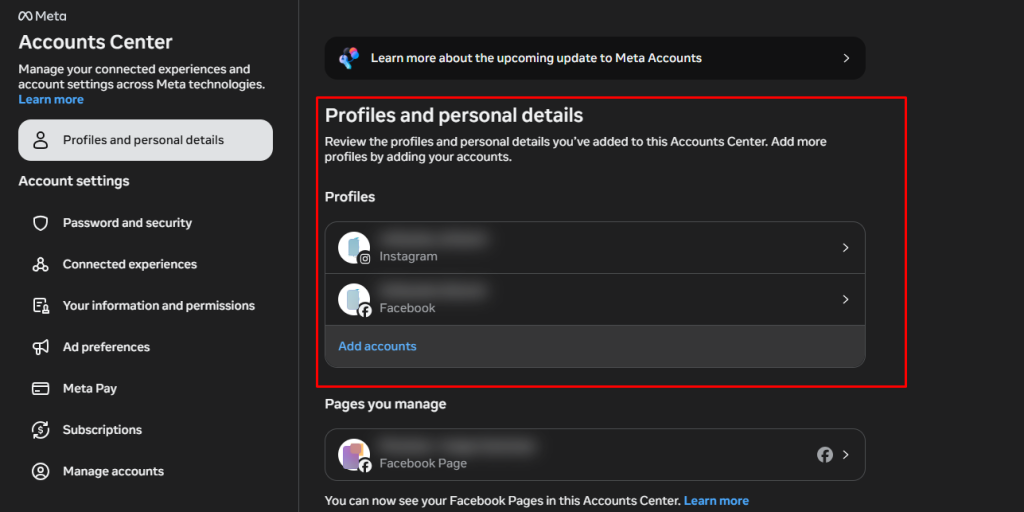
Your business must also meet Meta’s Commerce Eligibility Requirements, comply with its policies, and be located in a country where Instagram Shopping is supported.
You can review the full Facebook and Instagram by Meta requirements on Shopify’s Help Center.
Check these items:
- Instagram account is Professional
- Correct Facebook Page is connected
- Correct Meta business is being used
- Account doesn’t have a commerce restriction
- Your business is located in a supported region
Step 2: Check or Install Facebook and Instagram by Meta
Instagram Shopping on Shopify uses the Facebook and Instagram by Meta sales channel to connect your Shopify store with your Meta business assets and product catalog.
Looking for more ways to extend your store? Explore the essential Shopify apps every merchant should know.
Go to: Shopify Admin > Settings > Sales channels
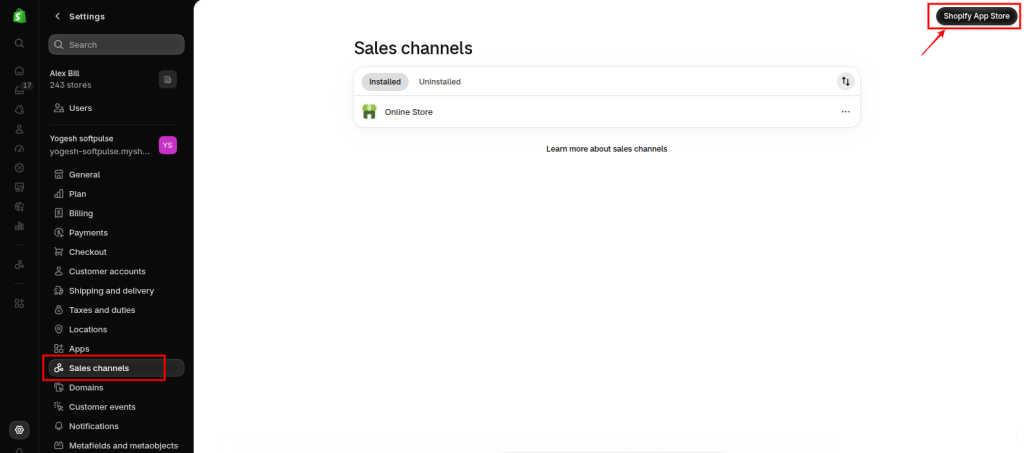
Then click Shopify App Store and search for Facebook and Instagram by Meta.
Click Add channel or Add app, depending on the option displayed in the Shopify App Store, and follow the setup instructions.
After installation, the channel should appear under your Shopify Sales channels.
Once it is installed, open the channel and check that:
- Your Facebook account is connected
- The correct Facebook Page is selected
- The correct Instagram professional account is connected
- The correct Meta business assets are connected
- There are no setup or permission errors
If you already have Facebook and Instagram by Meta installed, open the channel directly from Sales channels and check its connection and product status.
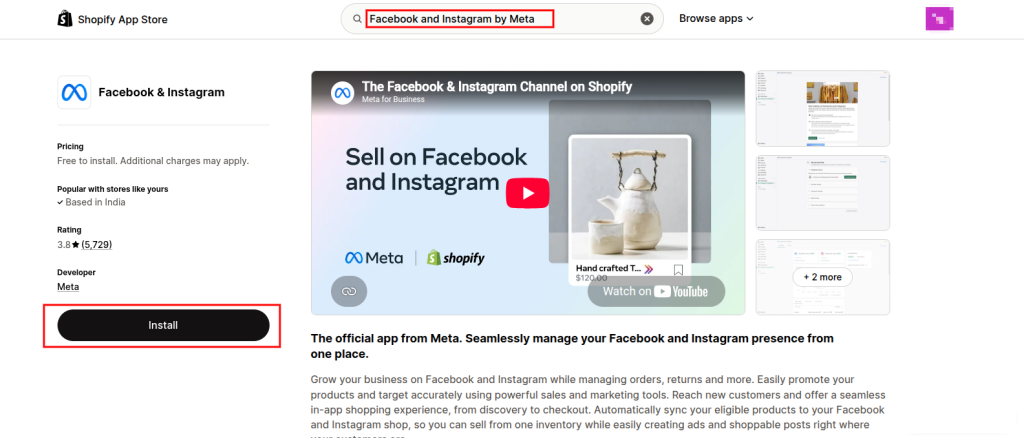
Install or open Facebook and Instagram by Meta to connect your Shopify store with Meta and set up Instagram Shopping.
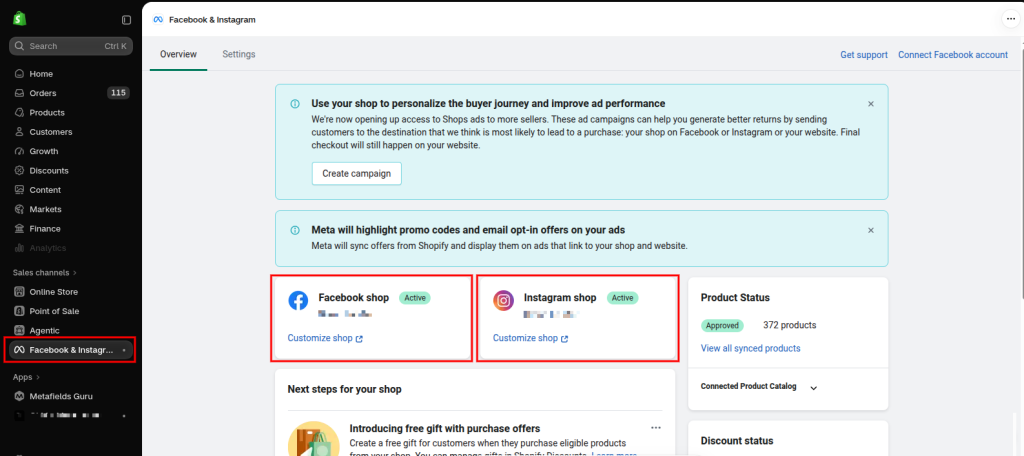
Follow Shopify’s guide to setting up Facebook and Instagram by Meta if you need the full installation steps.
Step 3: Make Sure Your Product Is Available to Facebook and Instagram on Meta
After installing and connecting the Meta sales channel, check whether the product you want to tag is available on Facebook and Instagram via Meta.
Meta can reject products with poor images, so follow our guide to selecting and preparing images for your ecommerce store.
You can check the product directly from: Shopify Admin > Sales channels > Facebook and Instagram > View products
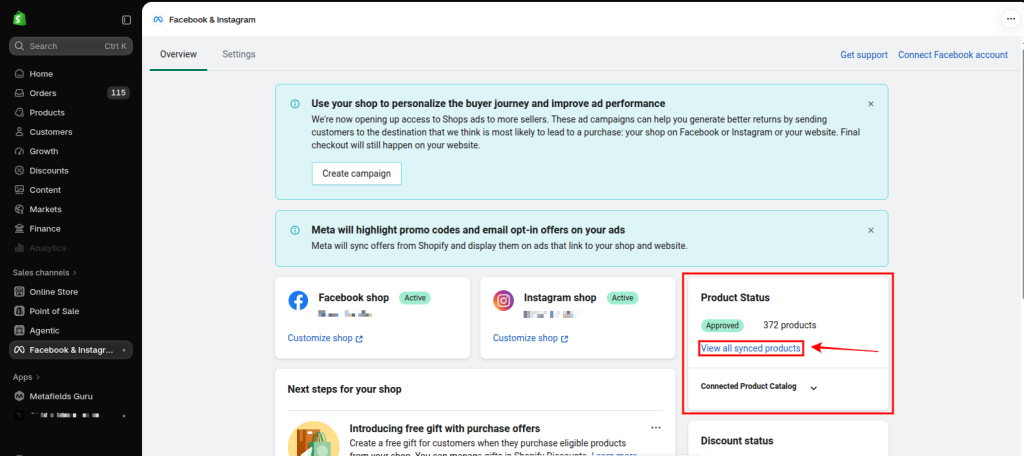
You can also open the product in: Shopify Admin > Products > Select your product, and check its sales channel availability.
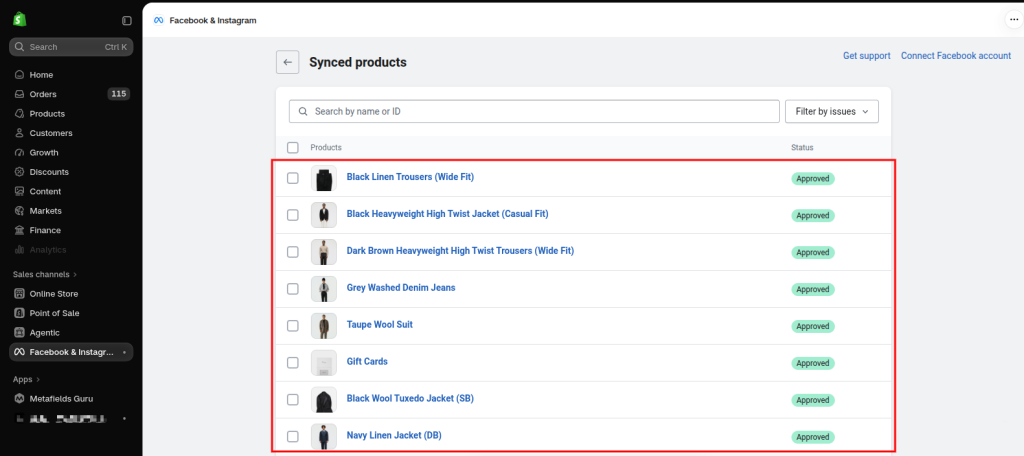
Make sure the product:
- Is active in your Shopify store.
- Is available to Facebook and Instagram by Meta sales channel.
- Has a valid product title and description.
- Has suitable product images.
- Has the required product information and variant details.
- Meets Meta’s Commerce Policy and product requirements.
- Doesn’t show any publishing errors.
If the product isn’t available to the Meta channel, it won’t be available for Instagram Shopping product tagging.
Meta Commerce Manager shows the connected Instagram product catalog.
Shopify explains how to publish products on Facebook and Instagram by Meta, including how to view product status.
Step 4: Check Product Publishing Errors
If your product is already available to Meta but still doesn’t appear on Instagram, check whether Shopify has reported a product error.
Go to: Shopify Admin > Facebook & Instagram by Meta > Products > View products
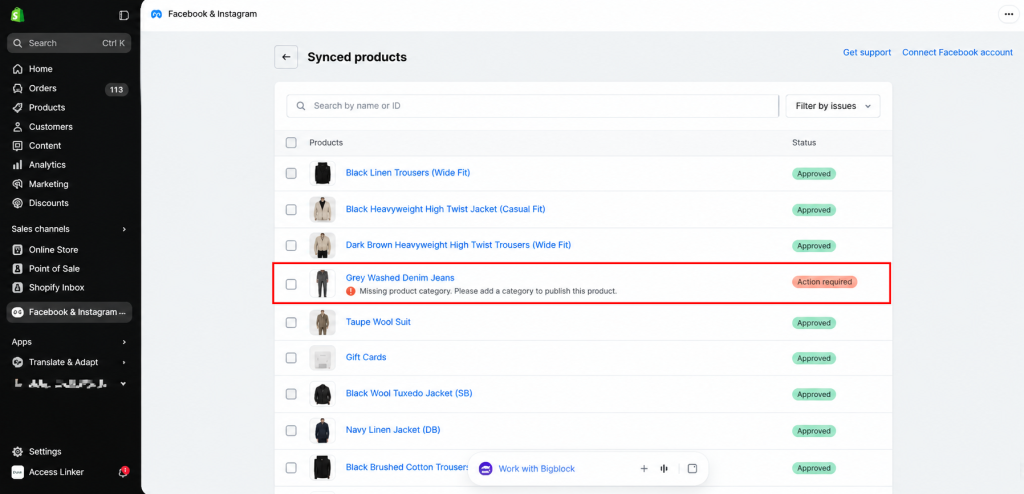
Shopify displays product status information and any reported publishing issues in the Facebook & Instagram by Meta sales channel. These details can help you identify why a product isn’t available for Instagram Shopping.
Look for products showing:
- Error
- Unavailable
- Rejected (if shown in Meta)
- Missing product information
Open the affected product and follow the error message shown by Shopify.
For example, you may need to update product information or provide a suitable product category.
Step 5: Check Your Meta Product Catalog
If Shopify shows that everything is correct but Instagram still doesn’t show the product, check the Meta catalog.
Open Meta Commerce Manager and find the catalog connected to your Shopify store.
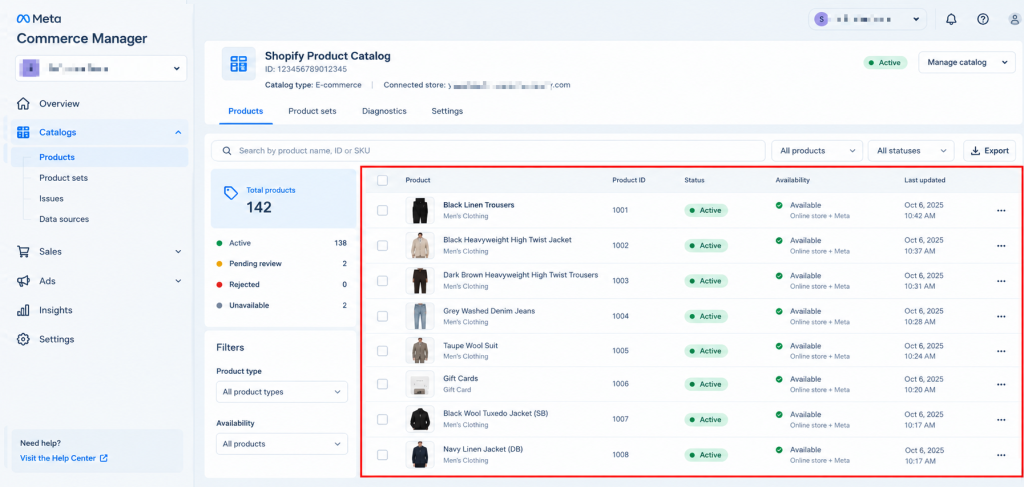
Check that the affected product:
- Exists in the catalog
- Is active
- Has the correct product information
- Doesn’t have a rejection or policy issue
- Belongs to the correct business/catalog
The Facebook and Instagram by Meta sales channel uses a shared product catalog for Facebook Shop, Instagram Shopping, and advertising features. This means product availability in the catalog can affect more than one Meta feature.
Important: If you have multiple Meta catalogs, don’t immediately create another catalog or disconnect the existing one.
Managing catalogs across several channels can get complicated, and Shopify store management services can take that work off your hands.
First identify which catalog is connected to your Shopify integration and which catalog your Instagram Shopping setup is using.
Step 6: Check Your Website Domain
Your Shopify store also needs to meet Meta’s domain and commerce requirements.
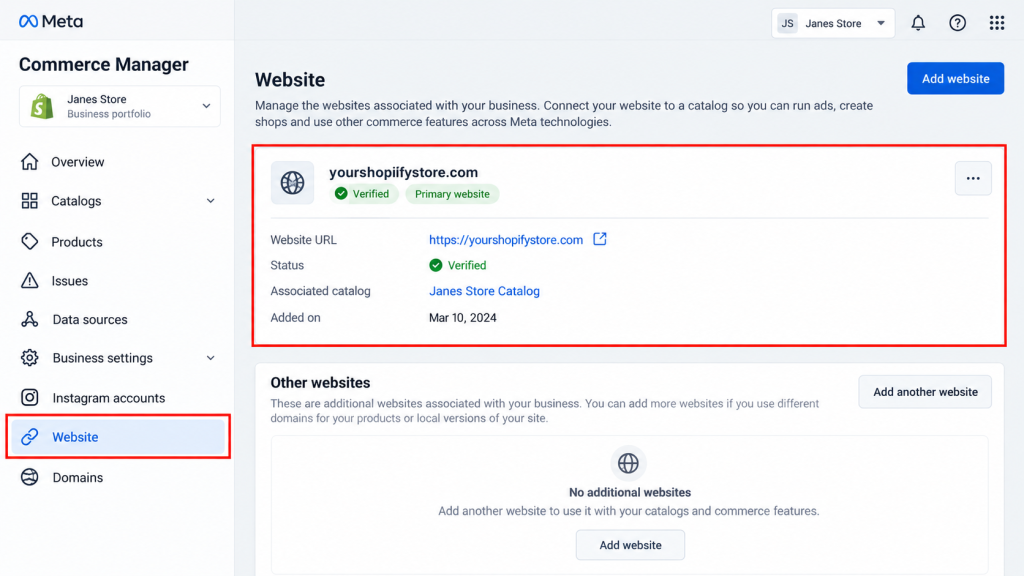
Shopify’s current requirements state that products need to be available for direct purchase from your verified domain.
This is especially important if you recently:
- Changed your Shopify domain
- Added a new domain
- Migrated from another platform
- Changed your primary domain
- Changed international market domains
If you recently moved platforms, use this Shopify store migration checklist to make sure nothing was missed.
Meta requires products to be available for direct purchase from your verified domain. If you’ve recently changed your Shopify domain, added a new domain, or migrated your store, review your domain verification and the website URL associated with your Meta business setup.
Also, check that the product URL in your Meta catalog points to the correct Shopify storefront. If the catalog contains an outdated URL, the product may not direct customers to the correct page.
Step 7: Try Tagging the Product Again
After checking the above settings, try creating a new Instagram post.
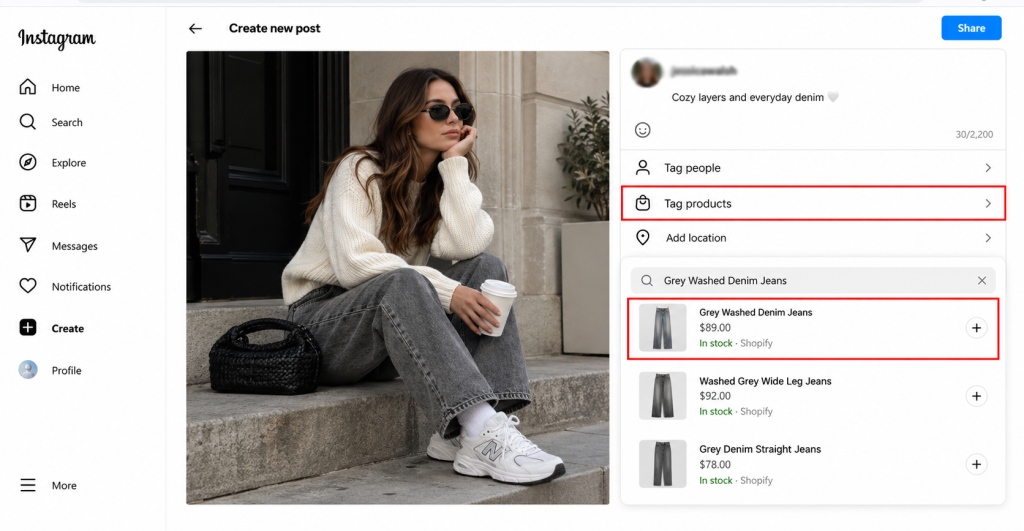
- Open Instagram and create a new post.
- Upload your product image.
- Select Tag Products.
- Search for the product you want to tag.
- Select the correct product from your catalog.
- If the product has multiple variants, select the appropriate variant.
- Publish your post.
Shopify confirms that eligible products can be tagged in Instagram posts and Stories. If a Shopify product has multiple variants, you’ll need to select the appropriate variant when creating the product tag.
Variant issues often cause tagging errors, so see how to add variants on Shopify the right way.
Conclusion
Instagram Shopping product tagging issues are often related to account eligibility, Shopify product availability, Meta catalog synchronization, or domain verification.
By checking your Instagram professional account, Facebook and Instagram by Meta sales channel, product publishing status, and Meta Commerce Manager catalog, you can identify many common problems without making unnecessary changes to your store.
If you’re still having trouble connecting Shopify with Instagram or resolving product synchronization issues, the Softpulse Infotech team can help. Our Shopify experts can assist with Meta sales channel setup, product catalog synchronization, integration troubleshooting, and Shopify store customization.
Get in touch with Softpulse Infotech for help with your Shopify and Instagram Shopping integration. Keep your integrations running smoothly with ongoing Shopify support and maintenance.
If the problem persists, you can hire Shopify developers to troubleshoot your Meta channel and catalog sync.
Frequently Asked Questions
1. Why are my Shopify products not showing on Instagram?
Your Shopify products may not appear on Instagram if they are not published to Facebook and Instagram by Meta, have product publishing errors, or are missing from the connected Meta catalog. Check the product status in Shopify and Meta Commerce Manager.
2. Do I need a professional Instagram account for Instagram Shopping?
Yes. Instagram Shopping requires an eligible professional account, such as a Business or Creator account, connected to the appropriate Facebook Page and Meta business assets.
3. How do I connect my Shopify store to Instagram Shopping?
Install the Facebook and Instagram by Meta sales channel from the Shopify App Store. Connect your Facebook account, Facebook Page, Instagram professional account, and required Meta business assets. Then complete the setup and make eligible Shopify products available to the sales channel.
4. How long does it take for Shopify products to appear in the Meta catalog?
Product synchronization and review times can vary. Recently added or updated products may take some time to appear. Check the product status in Shopify and Meta Commerce Manager if the product is still missing.
5. Can I tag Shopify products in Instagram Stories?
Instagram Shopping may support product tagging in eligible formats, including supported posts and Stories. Availability depends on your account’s eligibility and the Instagram features available to your business.
6. What should I do if my products are approved in Meta but still cannot be tagged?
If your products are approved and active in the Meta catalog but don’t appear on Instagram, check whether the correct catalog is connected to your Instagram professional account. Also, verify your account eligibility, business assets, and product availability in Shopify. If everything looks correct, contact Meta Support to investigate any account or catalog-related restrictions.